
Remote Work Setup for Back Pain: 7 Proven Ergonomic Hacks
Are you struggling to build a remote work setup for back pain relief that allows you to remain focused and comfortable throughout long work shifts? As a certified workplace ergonomics specialist with over eight years of hands-on experience evaluating remote home offices, I regularly meet remote professionals who endure chronic lower back aches, sharp sciatic discomfort, and severe upper spine tightness simply because their desk arrangement lacks proper anatomical support.
Prolonged sitting without proper pelvic lumbar alignment places up to 140% more compressive load on your lumbar intervertebral discs compared to standing. When you slouch over a flat desk or work from a soft living room couch, your spinal curve flattens out, overstretching the surrounding spinal ligaments and causing painful muscular spasms. Fortunately, with a few scientifically backed adjustments to your chair, monitor height, and foot positioning, you can transform your workspace into a pain-free sanctuary.
“Lower back pain at a computer desk is not an inevitable byproduct of working from home; it is a clear mechanical warning that your spine is operating without adequate lumbar curve support and pelvic neutrality.”
— Spine Ergonomics & Physical Health Review
In this comprehensive guide, based on real-world spinal posture assessments and clinical ergonomic trials, we will walk you through seven detailed fixes to build an optimal remote work setup for back pain relief. Each step includes practical gear recommendations and posture principles to keep your body feeling healthy, agile, and pain-free every single day.
1. Support the Lumbar Curve in Your Remote Work Setup for Back Pain
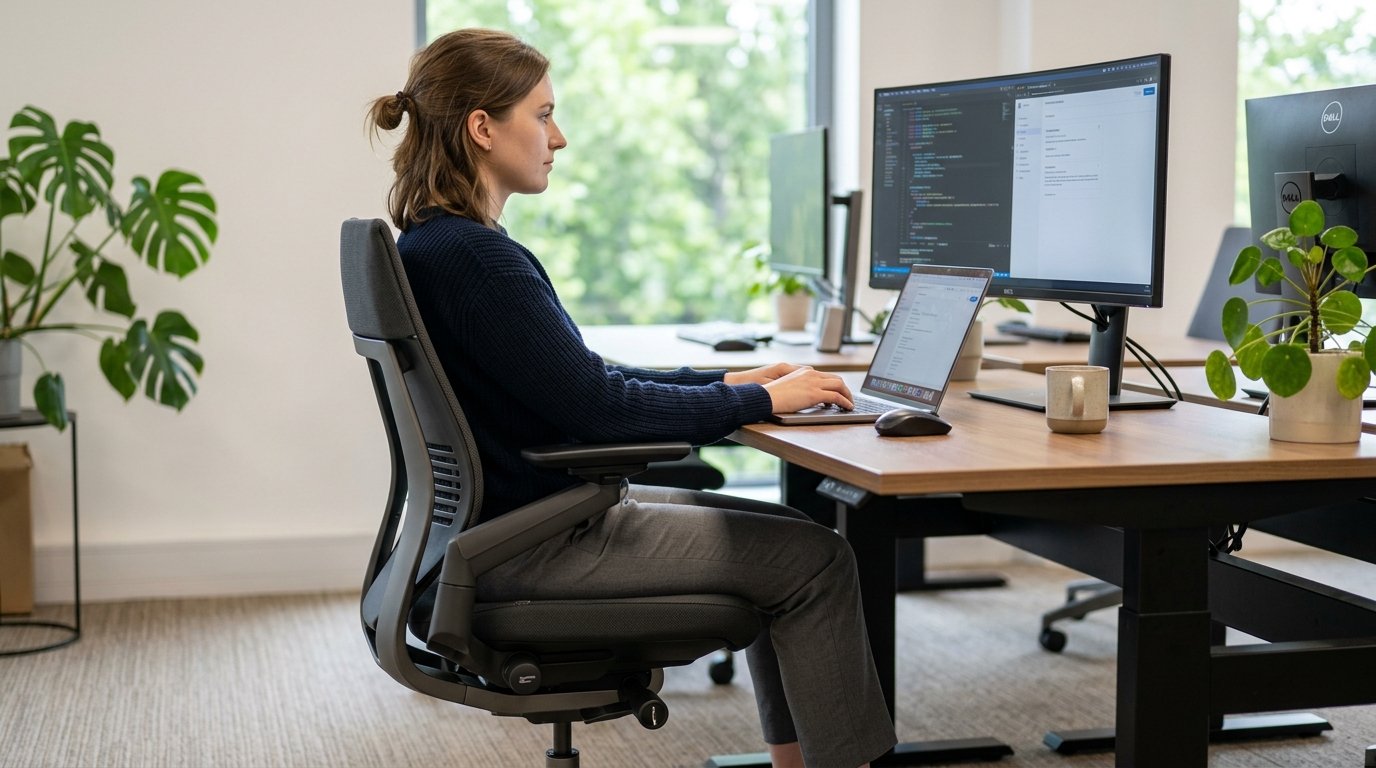
The human lumbar spine possesses a natural inward lordotic arch. When you sit in an unsupportive dining room chair or an overly soft executive leather seat, your pelvis tilts backward, flattening this critical natural curve. Over several hours, this flattening forces the gel-like fluid inside your lumbar discs to migrate backward toward sensitive nerve roots, creating persistent dull aches and radiating stiffness.
To establish a supportive remote work setup for back pain, choose an ergonomic office chair featuring a height-adjustable and depth-adjustable firm mesh lumbar support mechanism. Position the lumbar cushion directly into the small curve of your lower back, right above your beltline. The cushion should press gently against your spine without forcing your back forward unnaturally, maintaining your natural S-curve effortlessly as you type.
Additionally, pay close attention to the firmness of your lumbar support pad. Soft foam cushions compress completely under body weight, offering virtually zero structural reinforcement after 30 minutes of sitting. A firm, high-density memory foam or mesh support framework holds its anatomical shape continuously, ensuring your spinal discs remain offloaded throughout entire afternoon work sessions.
2. Eliminate Perched Seating with Hip-to-Knee Angle Alignment
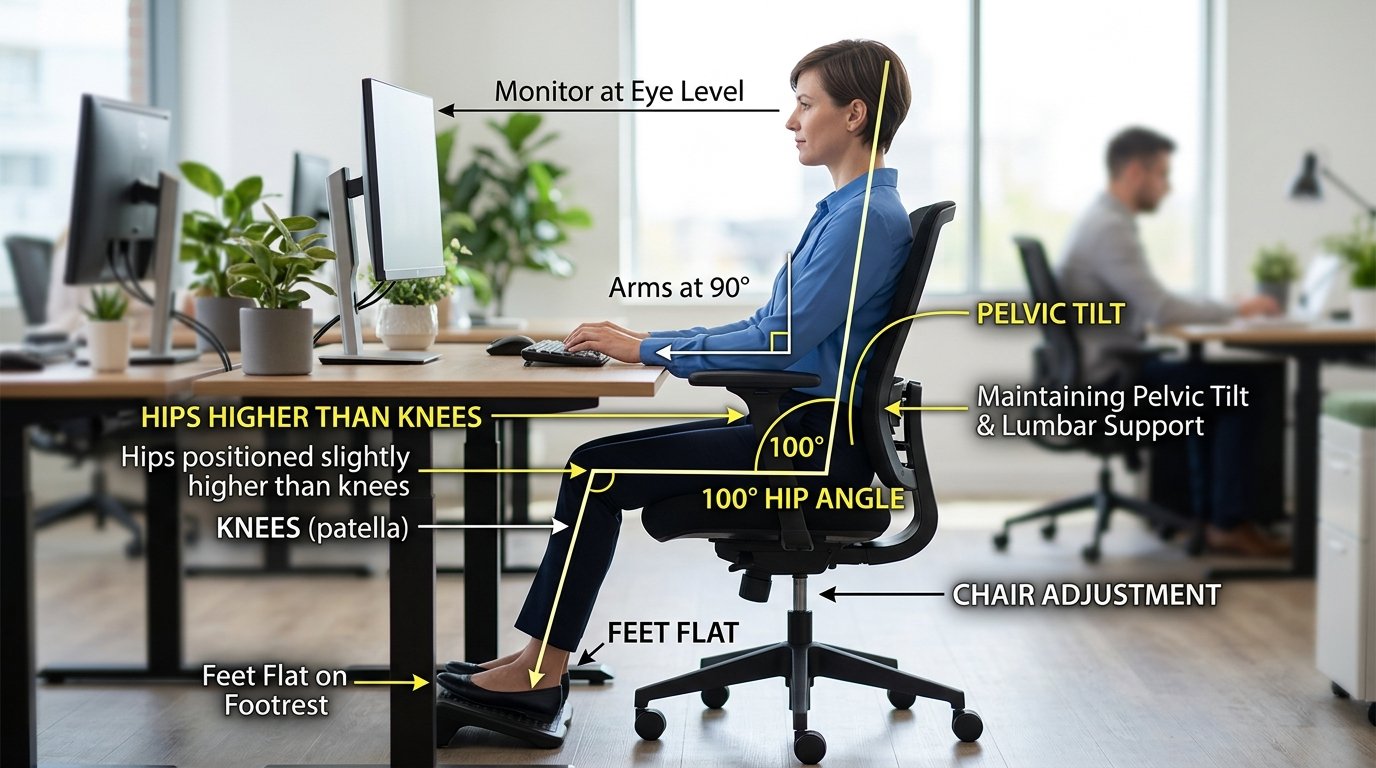
Many remote workers make the mistake of adjusting their seat height too low, placing their knees higher than their hips. This folded posture rotates the pelvis backward and flattens the lower spine into a C-shape posture, doubling the strain on your lower back muscles. Conversely, sitting on the front edge of your chair without back contact strains your hip flexors.
For an ideal remote work setup for back pain relief, adjust your chair height so your hips sit at a slight incline—roughly two inches higher than your knees—creating an open hip angle between 100 to 110 degrees. Sitting at an open hip angle allows your weight to distribute evenly through your sit bones (ischial tuberosities), preserving pelvic neutrality and dramatically reducing disc compression.
If your office chair seat pan is adjustable, tilt the seat cushion forward by 2 to 3 degrees. This subtle forward slope naturally encourages your pelvis to rotate into proper anterior alignment, preventing slouching without requiring conscious muscular effort.
3. Use an Angled Memory Foam Ergonomic Footrest
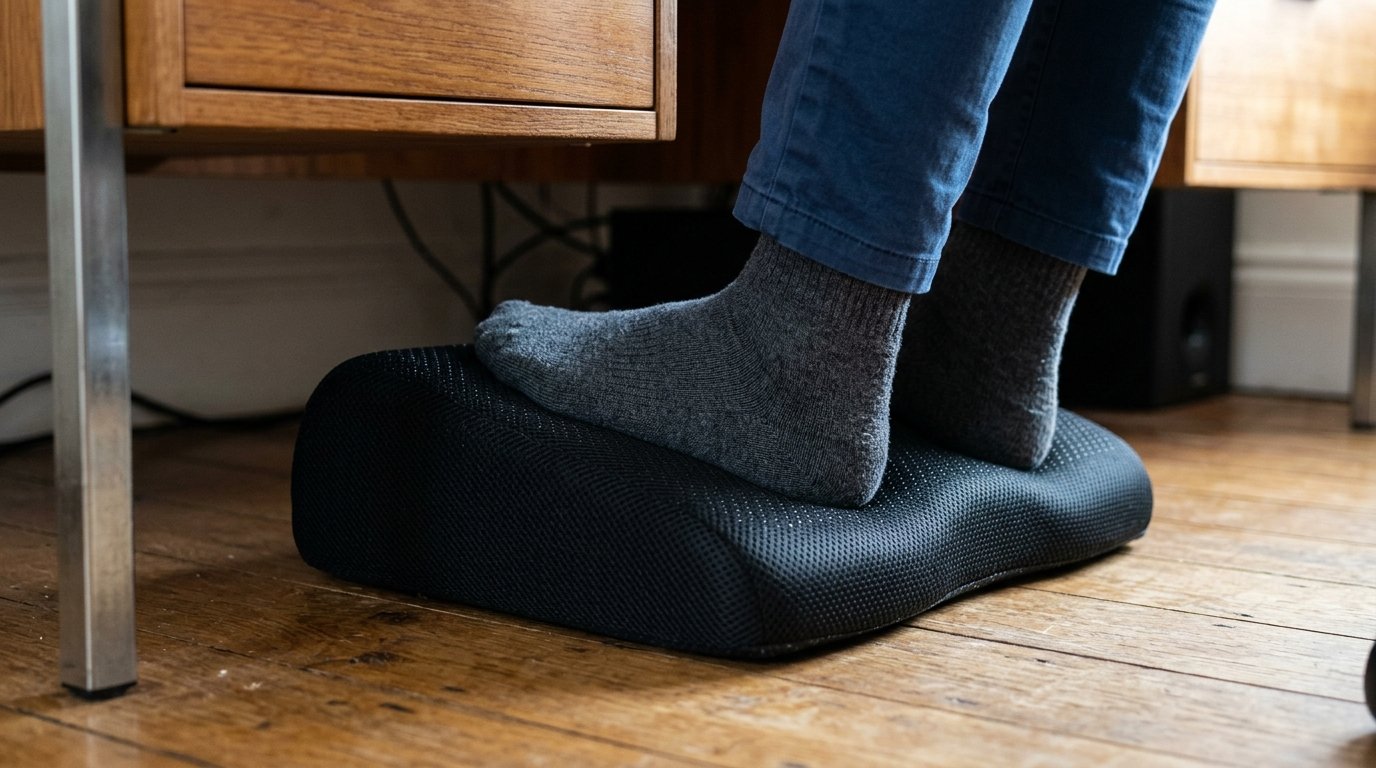
If raising your office chair to match your desk height leaves your feet dangling in mid-air or forcing you to rest your toes on the chair base, your lower back suffers directly. Dangling legs pull your pelvis forward and cut off proper blood circulation behind your hamstrings, leading to lower leg numbness and sacral spinal tension.
Integrating a firm, angled memory foam footrest into your remote work setup for back pain solves this issue instantly. A quality non-slip footrest elevates your feet securely, distributing leg weight evenly and stabilizing your pelvic structure so your spine remains fully supported against your chair backrest throughout the entire workday.
Look for footrests featuring an adjustable tilt angle between 15 to 30 degrees. An angled foot surface encourages gentle ankle movement (plantar flexion and dorsiflexion), which activates your calf muscle pump to enhance blood circulation back to your heart while keeping your lower lumbar spine fully relaxed.
4. Raise Your Display to Stop Forward Head Slouching
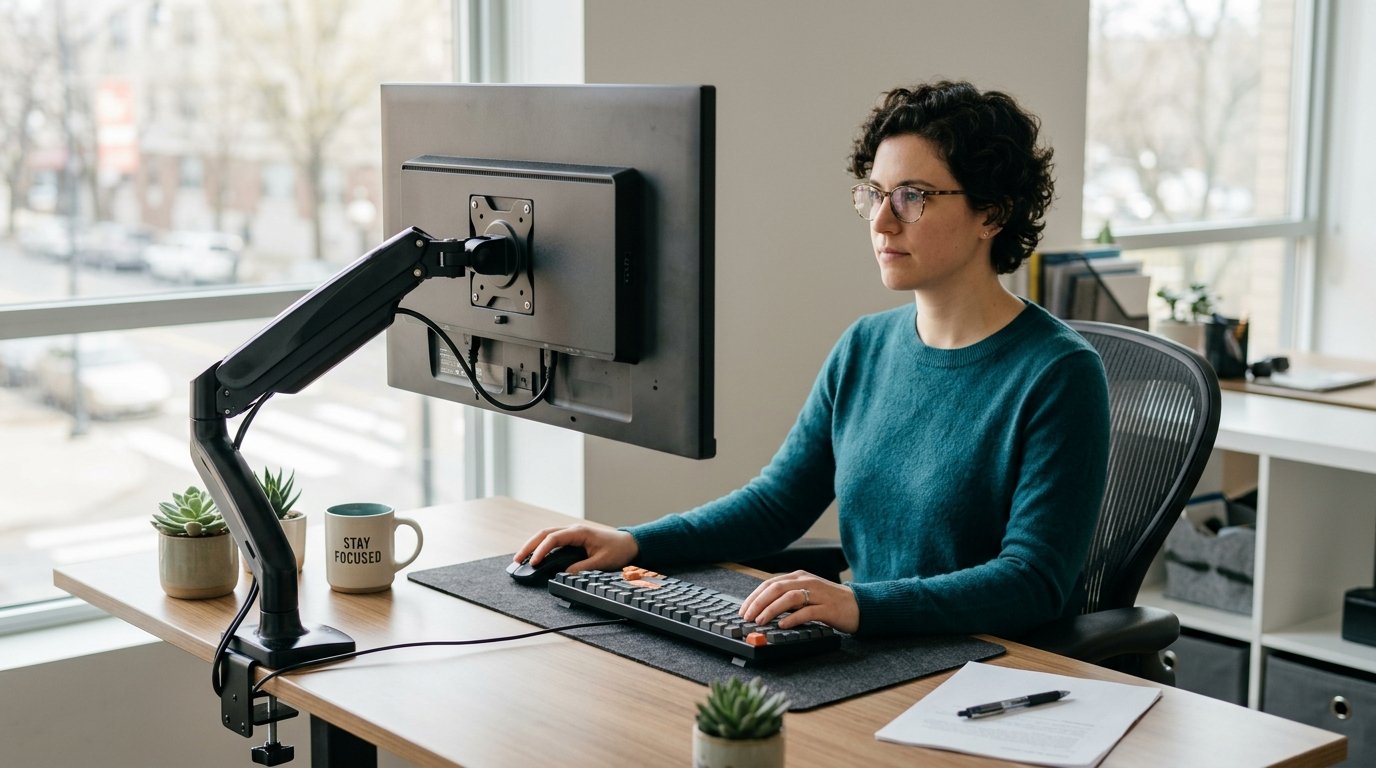
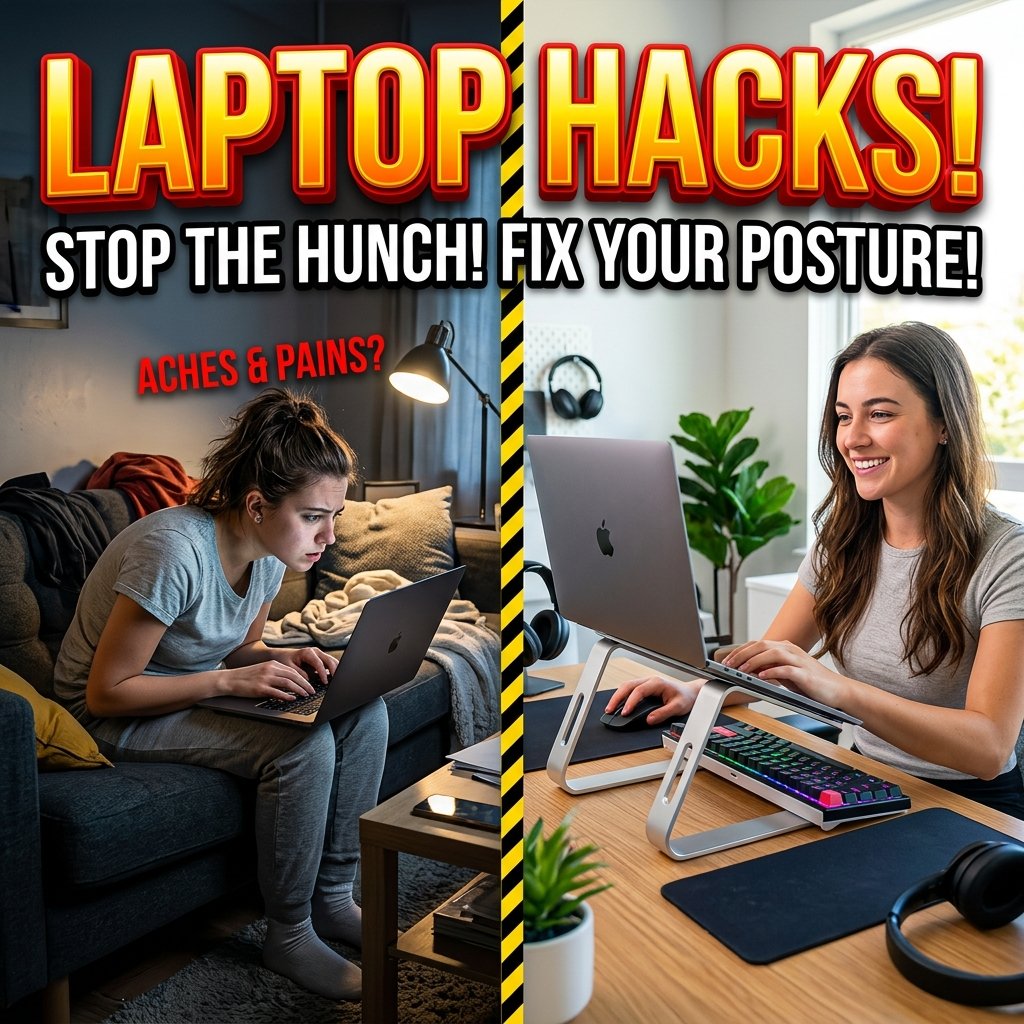
Your head weighs approximately 10 to 12 pounds when held perfectly upright. However, for every single inch you lean your head forward to look down at a low laptop or improperly set monitor, the effective gravitational strain on your neck and upper spine increases by 10 additional pounds. Leaning forward three inches creates 40 pounds of constant pulling force on your thoracic and lumbar back muscles.
“Spinal posture operates as an interconnected kinetic chain. Fixing your monitor height eliminates forward head tilt, which automatically stops your upper back from rounding and takes immense stress off your lower spine.”
— Ergonomic Clinical Practice Journal
Mount your computer display on an adjustable gas-spring monitor arm or a sturdy wooden monitor riser. Adjust the display height so your eyes naturally align with the top horizontal third of the screen when sitting upright. This height alignment allows your head to balance naturally over your shoulders, preventing upper back fatigue and relieving lower lumbar pull.
Ensure your monitor is positioned roughly an arm’s length away (20 to 30 inches). Positioning the display too far away causes you to squint and crane your neck forward, while placing it too close causes eye strain. Correct distance and height work together to maintain complete cervical alignment.
5. Switch to a Vertical Mouse to Unwind Shoulder Strain
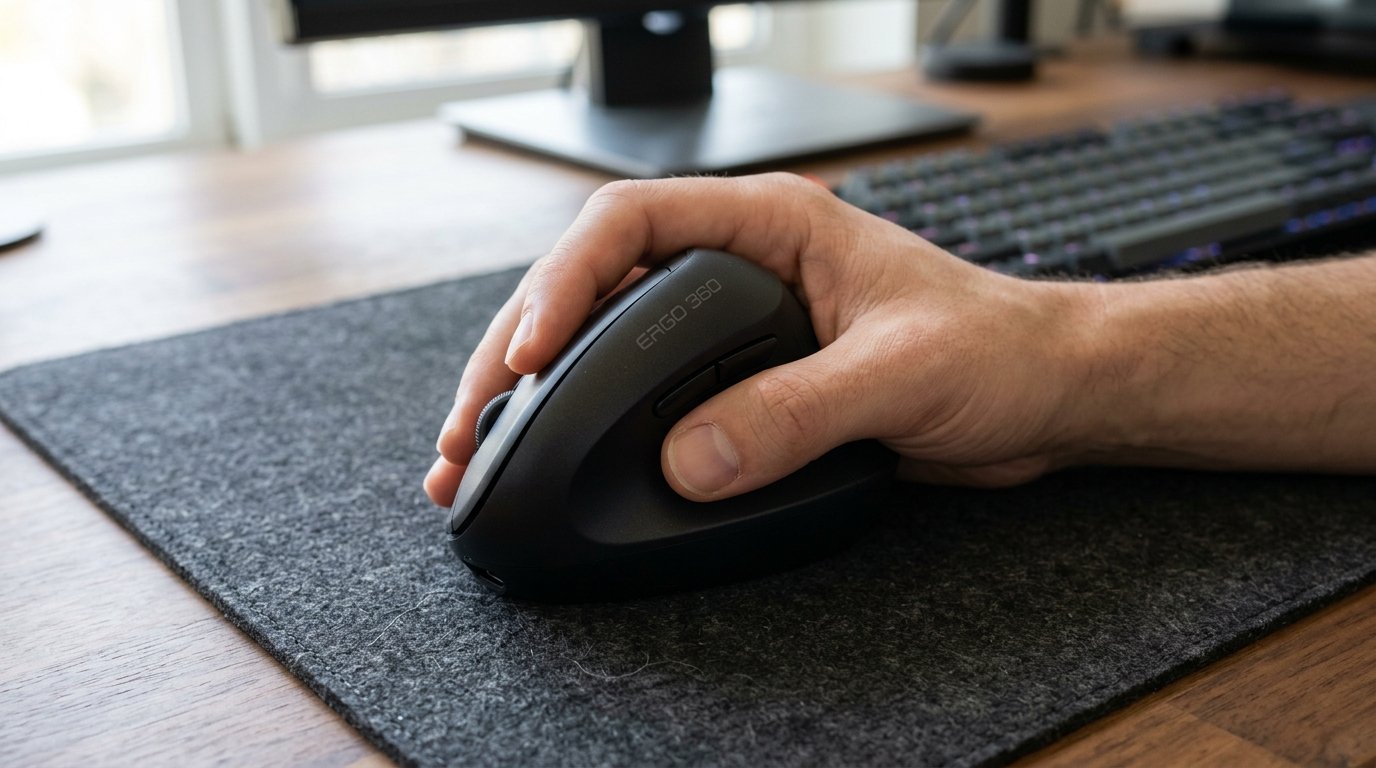
Operating a standard flat mouse forces your forearm bones (radius and ulna) to cross over into a pronated position. This forearm twisting radiates upward into your shoulder joint, pulling your upper trapezius and rhomboid back muscles out of alignment. Over time, upper back muscle tightness triggers compensatory spasms down your mid and lower spine.
Transitioning to an ergonomic vertical mouse is a brilliant upgrade for any remote work setup for back pain. A vertical mouse positions your hand in a relaxed, natural “handshake” angle. This position keeps your forearm muscles un-twisted, relaxes your shoulder girdle, and eliminates tension that travels down your back.
When selecting a vertical mouse, choose a model that supports your palm fully without requiring a tight grip. A soft-touch rubber grip with light-click buttons prevents hand fatigue, allowing your arm, shoulder, and back muscles to rest completely while navigating complex spreadsheets or coding environments.
6. Introduce Short Posture Reset Breaks Every Hour
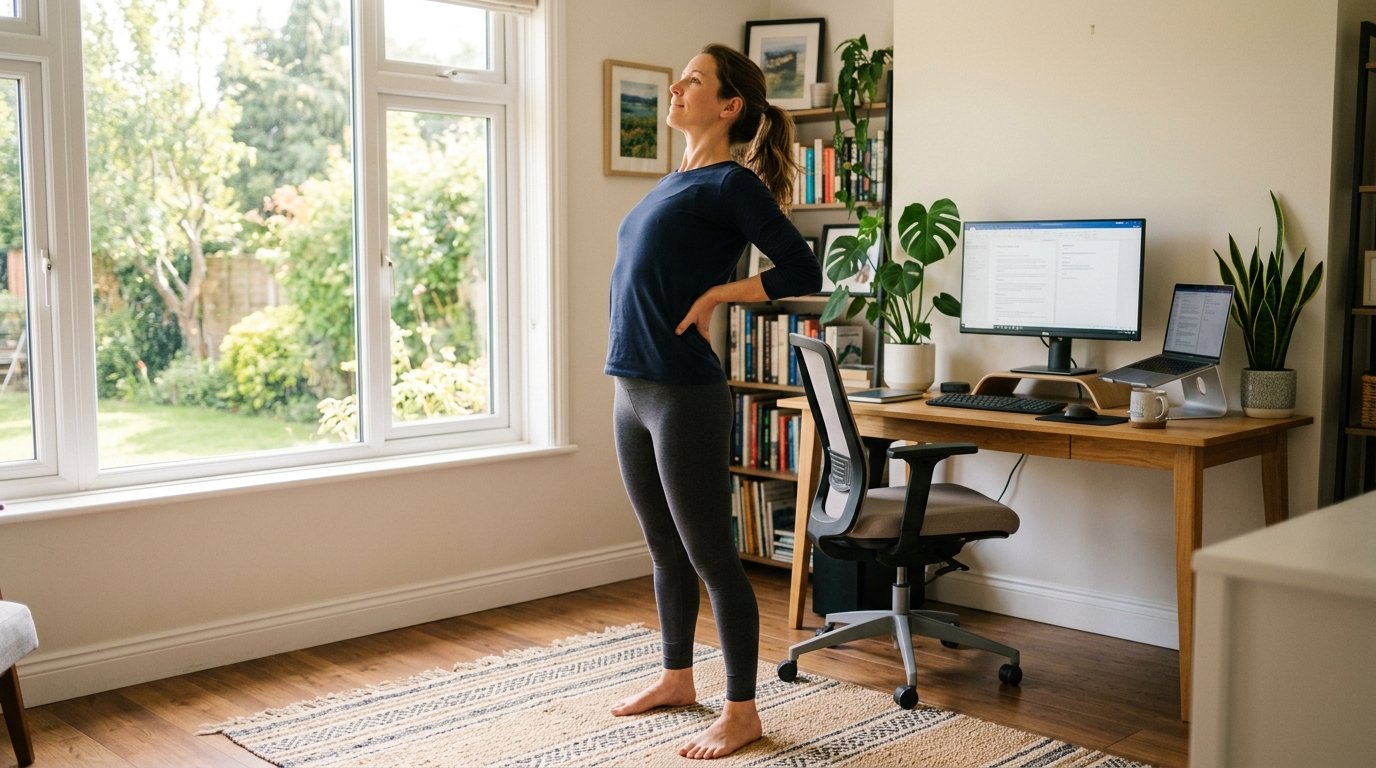
Human spinal discs rely on physical movement to absorb nutrient-rich fluid and flush out metabolic waste products. Remaining locked in a static seated position—even with perfect ergonomic equipment—restricts blood flow and causes disc desiccation, making your back feel stiff and sore by late afternoon.
Set a gentle hourly timer on your phone or laptop. Every 50 minutes, stand up and perform three gentle standing back extensions by placing your palms on your hips and leaning backward softly while taking deep belly breaths. This quick 60-second micro-break re-hydrates your lumbar discs, resets your posture, and keeps spinal stiffness from accumulating.
In addition to back extensions, incorporate quick chest opener stretches by reaching your hands behind your back and interlocking your fingers. Opening your chest counteracts hours of forward shoulder slouching, restoring mobility to your thoracic spine and offloading your lower back instantly.
7. Incorporate a Motion Balance Cushion on Your Chair
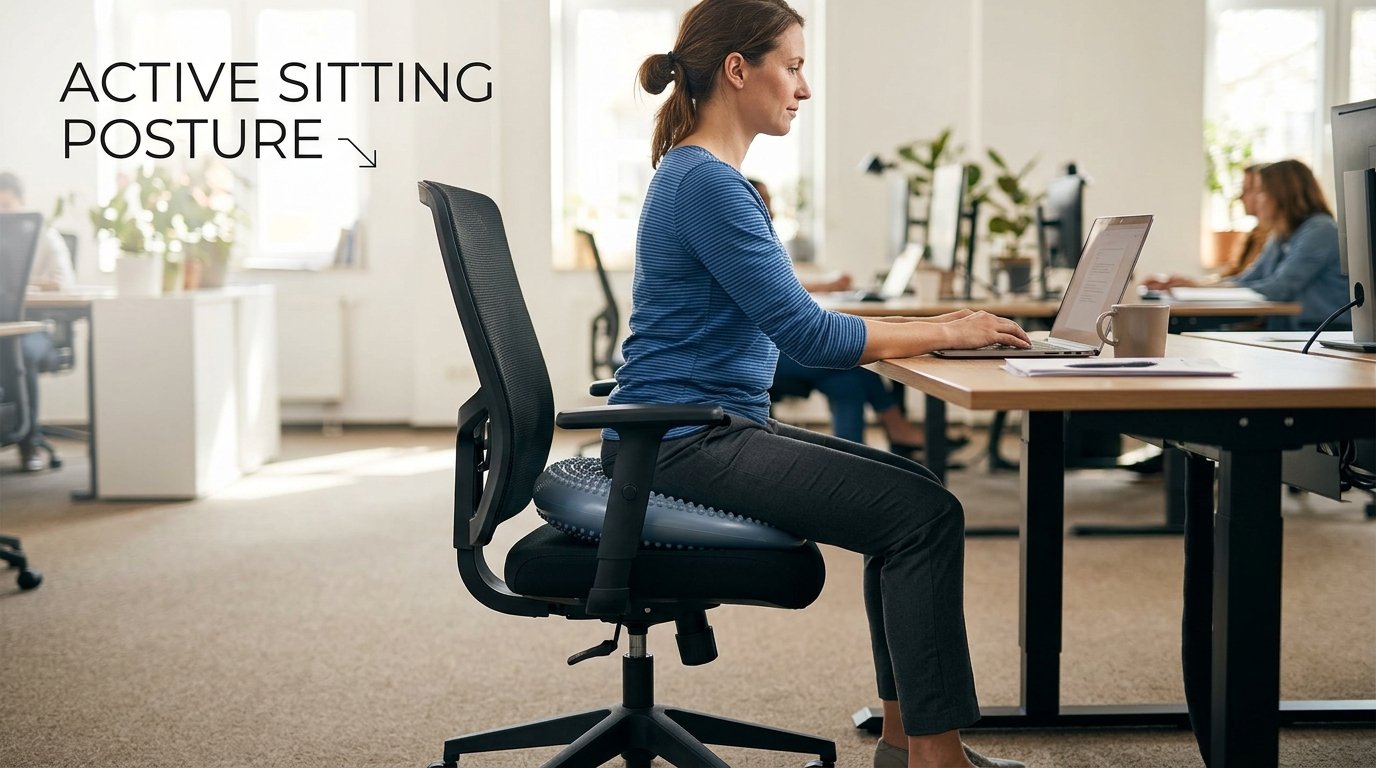
Static sitting causes core stabilizing muscles (such as the transverse abdominis and multifidus) to turn off, leaving your lumbar spine vulnerable to strain. Placing an inflatable balance wobble cushion or an ergonomic gel-memory foam seat pad on your chair introduces subtle dynamic micro-movement while you work.
These subtle micro-adjustments keep your deep core muscles active, stimulate blood circulation throughout your lower pelvis, and cushion your tailbone (coccyx) effectively. By keeping your core engaged naturally, a balance cushion provides continuous active support for a remote work setup for back pain relief.
Start by using a balance cushion for 30-minute intervals twice a day. Over time, as your deep core stabilizer muscles strengthen, you can increase usage to build resilient spinal posture that resists fatigue during long computer work hours.
Q: Budget vs. Premium Cost Guide
| Ergonomic Solution | Budget-Friendly Approach | Premium Investment |
|---|---|---|
| Lumbar Back Support | Contoured memory foam lumbar cushion ($25) | High-end mesh chair with active lumbar tracking ($800+) |
| Foot Stabilization | High-density foam foot rest cushion ($20) | Adjustable metal footrest with massage rollers ($75) |
| Seating Cushion | Inflatable active wobble balance pad ($18) | Orthopedic coccyx gel seat cushion ($60) |
| Monitor Height | Wooden desk riser or monitor stand ($20) | Gas-spring single/dual monitor arm ($120) |
Q: Myth vs. Fact
Myth 1: Sitting perfectly upright at a rigid 90-degree angle is best for back pain.
Fact 1: Reclining slightly backward at a 100 to 110-degree open hip angle reduces spinal disc pressure far more effectively than stiff 90-degree sitting.
Myth 2: A thick, soft leather executive chair is the healthiest option for back pain.
Fact 2: Overly plush chairs lack structural lumbar firmness, causing your pelvis to tilt backward and flattening your lower back curve.
Myth 3: Wearing a tight posture brace at your desk will cure back pain permanently.
Fact 3: Wearing back braces continuously weakens your natural core stabilizer muscles over time. Active ergonomic positioning is far safer and more effective.
Myth 4: Standing at a standing desk all day long completely eliminates back pain.
Fact 4: Standing continuously for 8 hours causes foot arch fatigue and lower back joint compression. Alternating between sitting and standing is the real solution.
Myth 5: Working out after work can totally undo 8 hours of bad desk posture.
Fact 5: Evening gym sessions cannot fully undo 8 hours of continuous disc compression. Hourly micro-stretches during your workday are essential.
Q: Frequently Asked Questions (FAQs)
Q: Why does my lower back ache after sitting for only 30 minutes?
Rapid lower back aching usually indicates that your chair lacks structured lumbar support, your hips sit lower than your knees, or your feet are dangling without ground support, forcing your lower spine to absorb your body weight.
Q: Is an ergonomic kneeling chair suitable for a remote work setup for back pain?
Kneeling chairs are excellent for short 1 to 2-hour work sessions because they open your hip angle and promote natural pelvic tilt. However, they should be alternated with a standard supportive mesh chair to avoid shin strain.
Q: How high should my lumbar support cushion be placed?
Position your lumbar cushion in the small inward curve of your lower back, resting right above your beltline (around your L1 to L5 vertebrae). It should support your lower back firm without pushing your upper back forward.
Ultimately, configuring a high-performance remote work setup for back pain relief requires aligning your spine, supporting your feet, and prioritizing movement. By incorporating firm lumbar support, elevating your computer display to eye height, and taking short hourly back stretches, you can enjoy a comfortable, pain-free workday at home. For more detailed scientific research on spinal health, read this comprehensive guide on Back Pain Causes and Ergonomics. Also, check out our master guide on Ergonomic Remote Work Setup for complete home office alignment strategies.
One Comment