
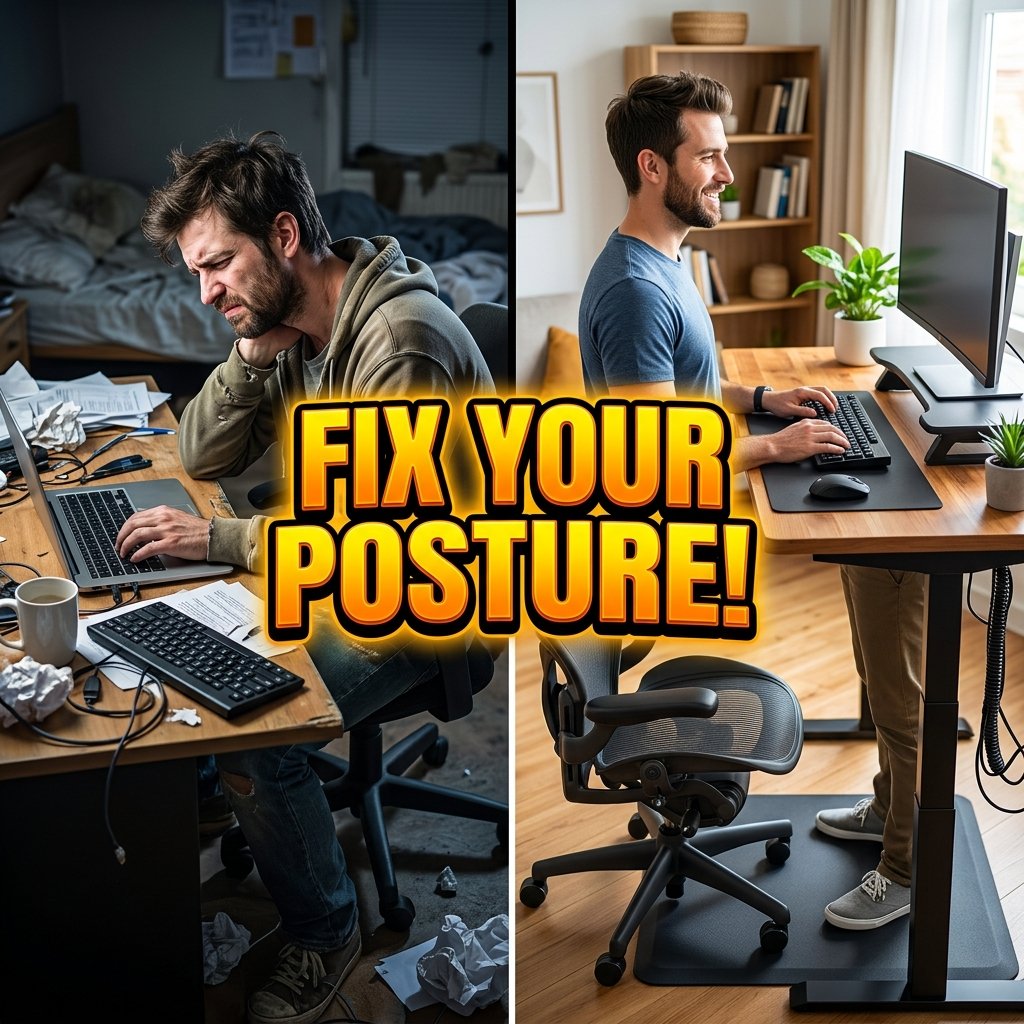
The Ultimate Ergonomic Remote Work Setup Guide
Are you looking to build an ergonomic remote work setup that keeps you pain-free and energized all day? As a workplace ergonomics consultant with over eight years of experience helping remote professionals design healthier workstations, I regularly see people suffer from chronic lower back pain, neck stiffness, and severe eye fatigue simply because their desk is improperly configured.
The human body was not designed to remain hunched over a laptop screen for eight hours straight. However, creating a supportive workspace does not require an expensive complete redesign. By understanding basic biomechanics and making a few strategic adjustments, you can eliminate discomfort and boost your daily focus dramatically.
“Proper ergonomics is not an indulgence—it is a vital investment in your long-term physical health, mental focus, and career longevity.”
— Ergonomic Design Philosophy
In this comprehensive guide, based on real-world ergonomic evaluations and client case studies, we will walk you through nine essential rules for an ergonomic remote work setup. These actionable steps will help you optimize your monitor, chair, keyboard, and daily habits for maximum physical comfort.
1. Position Your Monitor at Exact Eye Level

Looking down at a low monitor screen places up to 60 pounds of extra force on your cervical spine. To fix this, elevate your display so the top third of the screen aligns directly with your natural eye level when sitting up straight. You can use an adjustable monitor arm, a sturdy wooden monitor riser, or even a stack of books to achieve proper neck alignment.
2. Invest in an Adjustable Lumbar Support Chair
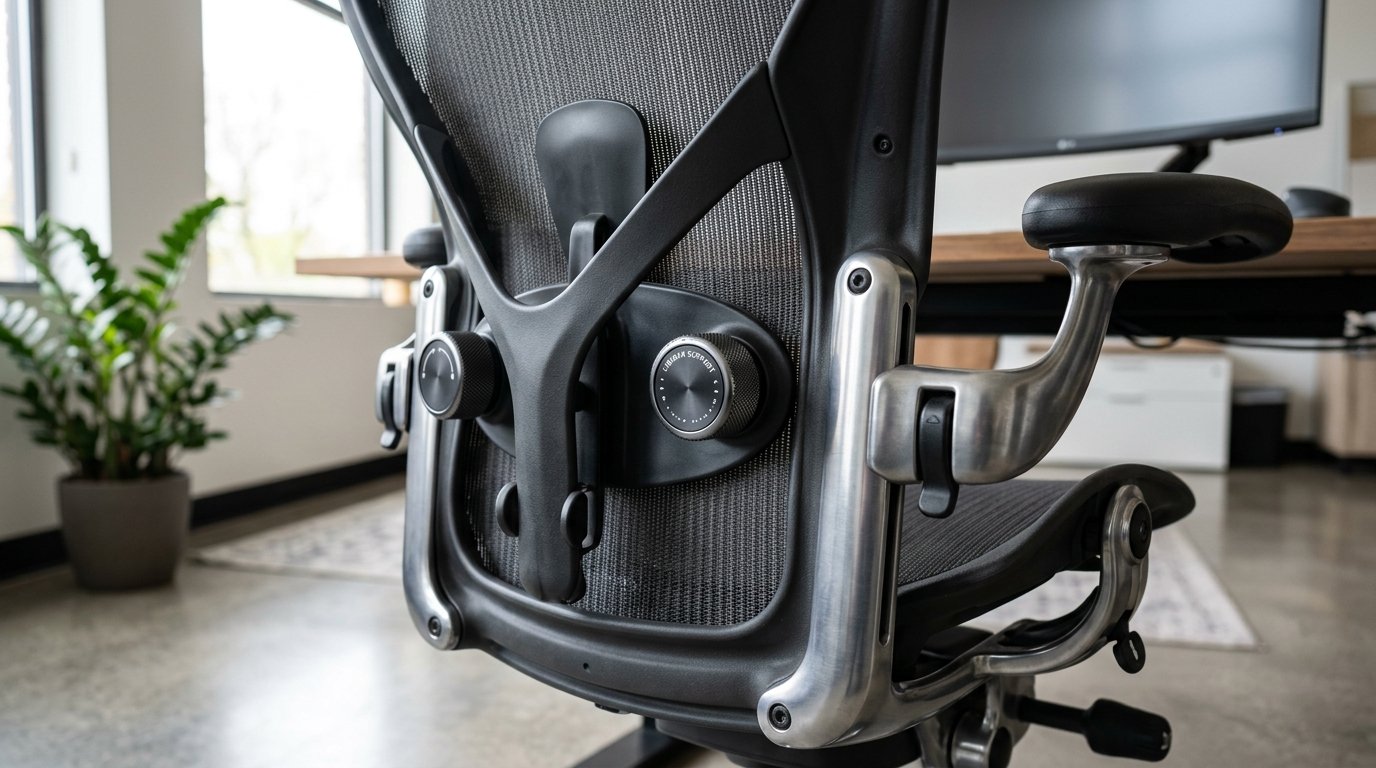
Your chair forms the foundation of your entire workstation. Avoid soft dining chairs or plush gaming chairs that lack structured lower back support. Choose an ergonomic mesh office chair with adjustable lumbar support that matches the natural S-curve of your spine. A quality lumbar curve prevents slouching and reduces pressure on your lower lumbar discs.
3. Apply the 90-Degree Elbow and Knee Rule

Angles matter tremendously when configuring your seating position. Adjust your chair height so your feet rest completely flat on the floor with your knees bent at a 90-degree angle. Similarly, adjust your armrests so your forearms rest parallel to the desk surface, allowing your elbows to rest comfortably at a 90-degree angle without shoulder strain.
4. Use an External Keyboard and Ergonomic Mouse
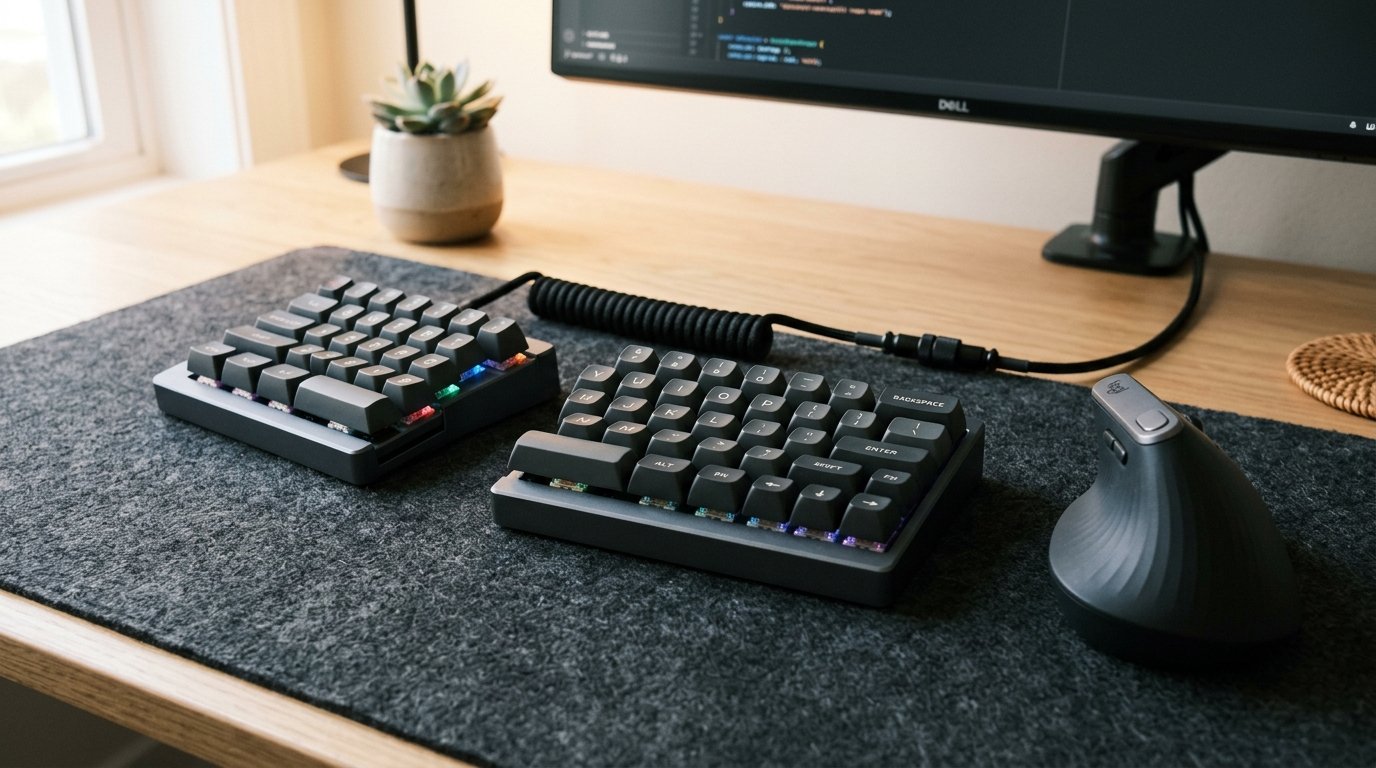
Typing directly on a laptop keyboard forces your shoulders to hunch inward and strains your wrists. Always connect an external keyboard and an ergonomic vertical mouse. A vertical mouse keeps your hand in a natural “handshake” position, which drastically reduces forearm muscle tension and protects against carpal tunnel syndrome.
“Small adjustments yield massive physical relief. Elevating your display and switching to a vertical mouse can eliminate 80% of upper body strain in just one week.”
— Physical Therapy & Ergonomic Insights
5. Incorporate a Sit-Stand Electric Desk
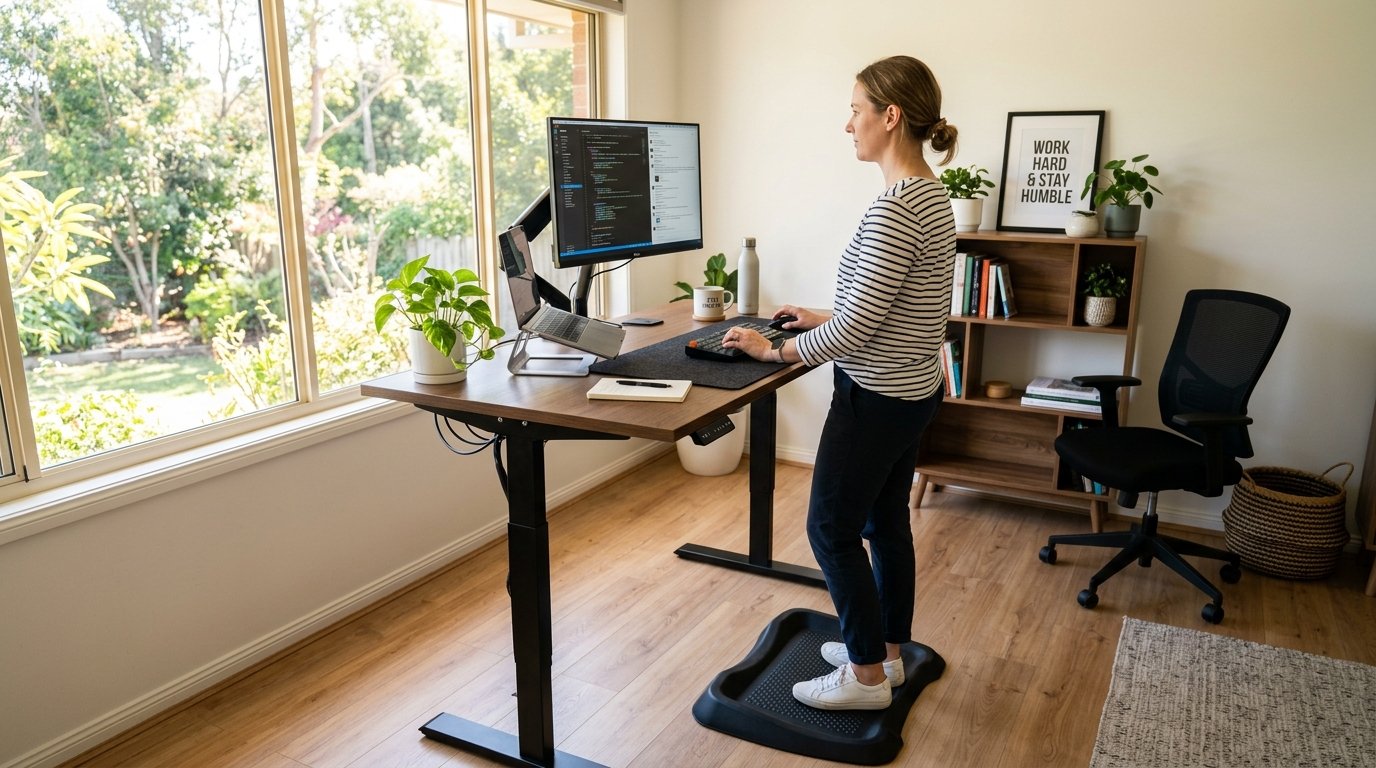
Even the most perfect sitting posture becomes harmful if maintained without movement. An electric standing desk allows you to alternate smoothly between sitting and standing throughout the day. Aim for a ratio of 45 minutes sitting followed by 15 minutes standing to encourage blood circulation and keep your energy levels steady.
6. Elevate Your Feet with an Ergonomic Footrest
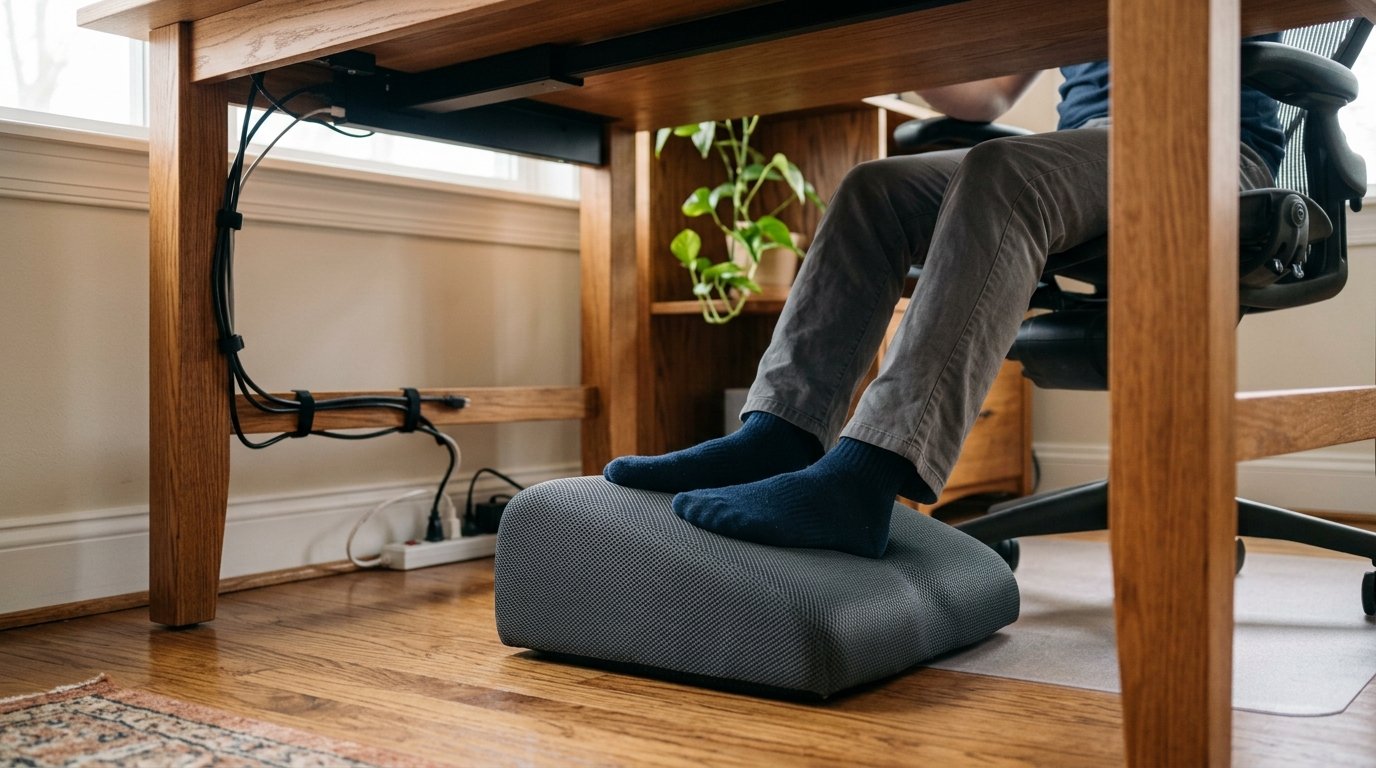
If your desk height is fixed and raising your chair leaves your feet dangling, a footrest is non-negotiable. Dangling feet restrict blood flow behind your thighs and pull your pelvis out of alignment. An angled memory foam footrest supports your feet firmly, alleviating lower back pressure instantly.
7. Eliminate Screen Glare with Bias Desk Lighting

Eye fatigue often stems from harsh reflections or stark light contrast in dark rooms. Install an LED monitor light bar on top of your display. Light bars cast glare-free task light onto your keyboard area without reflecting off the screen surface, reducing eye strain during long evening work sessions.
8. Keep Daily Tools Within Natural Arm Reach
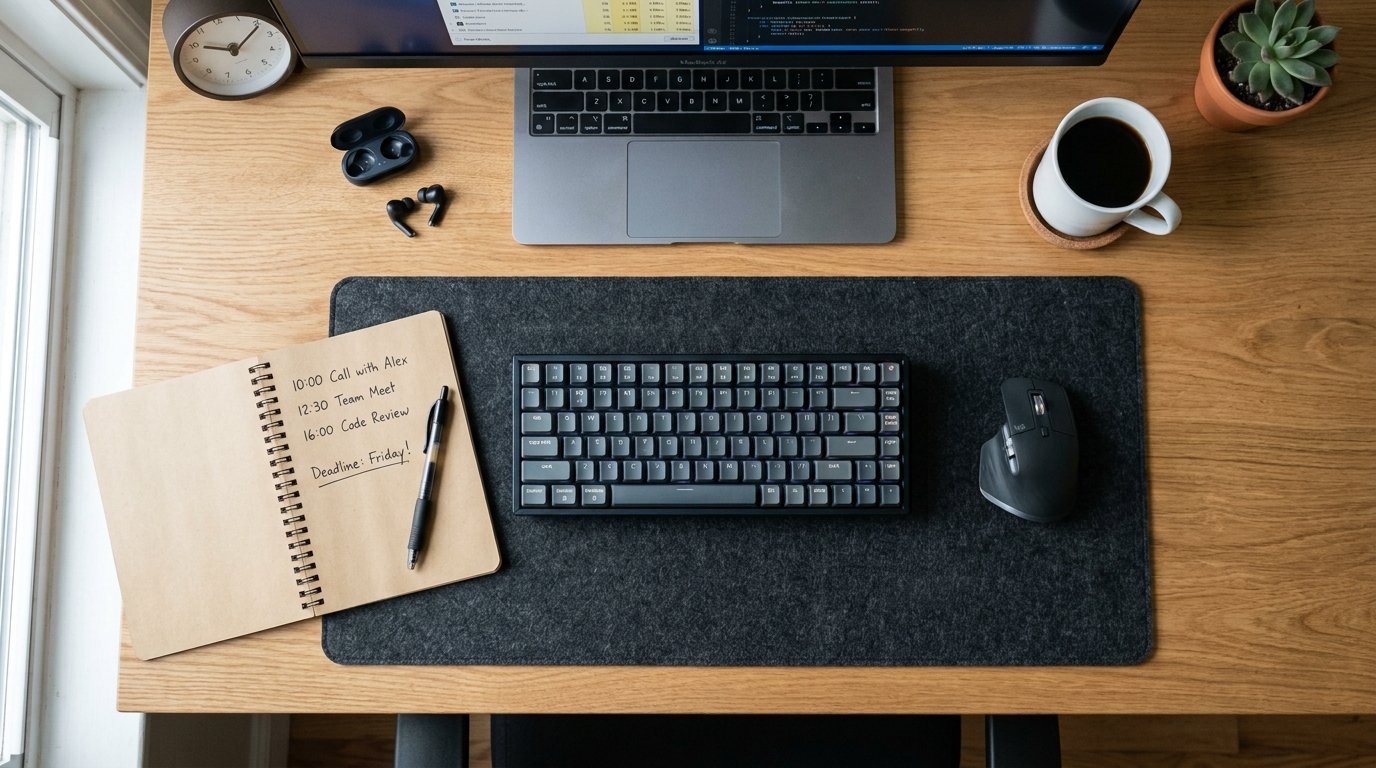
Repeatedly stretching across your desk to reach a phone, coffee mug, or notepad strains your shoulder muscles over time. Organize your workstation into reach zones. Keep primary tools within a 14-inch arc of your natural arm movement, reserving outer zones strictly for occasional-use items.
9. Take Structured Micro-Breaks with Active Movement

No ergonomic equipment can replace movement. Set a timer to take a two-minute micro-break every hour. Perform gentle chest openers, shoulder rolls, and wrist stretches. Stepping away from your desk regularly resets your posture, reduces muscle fatigue, and sharpens cognitive clarity.
Q: Budget vs. Premium Cost Guide
| Ergonomic Gear | Budget-Friendly Approach | Premium Investment |
|---|---|---|
| Office Chair | Adjustable mesh chair with lumbar cushion ($120) | Herman Miller Aeron / Steelcase Gesture ($1,200+) |
| Desk Setup | Manual desk converter or laptop stand ($35) | Dual-motor electric standing desk ($600+) |
| Peripherals | Vertical ergonomic wired mouse ($25) | Logitech MX Master 3S + Split Keyboard ($220) |
| Lighting | Clip-on desk lamp ($20) | BenQ ScreenBar Halo light bar ($180) |
Q: Myth vs. Fact
Myth 1: An expensive chair automatically solves all your back pain problems.
Fact 1: Even a $1,500 chair cannot prevent pain if your monitor height, arm position, and sitting habits are misaligned.
Myth 2: You should stand at your standing desk all day long.
Fact 2: Standing continuously for hours causes foot fatigue and leg strain. Alternating between sitting and standing is the real key.
Myth 3: Laptops are completely fine to use as primary work computers without accessories.
Fact 3: Un-elevated laptops force your head into a forward hunch, leading to severe cervical spine strain over time.
Myth 4: Soft, plush executive chairs are better for your back than mesh chairs.
Fact 4: Overly soft cushions allow your hips to sink and cause your spine to slouch. Firm, breathable mesh provides superior support.
Myth 5: Ergonomic desk setups take up a huge amount of room.
Fact 5: Simple accessories like a vertical laptop stand and a compact footrest fit into even the smallest studio apartments easily.
Q: Frequently Asked Questions (FAQs)
Q: What is the single most important ergonomic change I can make first?
Raising your monitor to exact eye level delivers the most immediate physical relief. It stops forward head posture instantly and reduces tension in your neck and upper back shoulders.
Q: How far away should my monitor be positioned from my eyes?
Place your screen roughly an arm’s length away (between 20 to 30 inches). If you can touch the screen with your fingertips while sitting back in your chair, your distance is ideal.
Q: Do vertical ergonomic mice really help with wrist pain?
Yes. Standard mice twist your forearm bones into a prone position. Vertical mice keep your hand in a neutral handshake position, eliminating forearm twisting and reducing wrist pressure.
Ultimately, configuring an ergonomic remote work setup is the best way to safeguard your long-term health while working from home. By aligning your monitor, adjusting your seating angles, and prioritizing regular movement, you will enjoy a comfortable, productive workspace every single day. Start by elevating your monitor to eye level right now. For more scientific background on human factors, read this resource on Human Factors and Ergonomics. Also, if you want to explore aesthetic room styling, check out our guide on Goth Home Decorating for unique interior design ideas.






7 Comments