

Dual Monitor Remote Work Setup: 8 Best Ergonomic Hacks
Are you looking to build a high-performance dual monitor remote work setup that expands your digital screen space and skyrockets your daily output? As a workplace technology consultant with over eight years of hands-on experience designing multi-display workstations for remote engineers, writers, and financial analysts, I frequently see professionals set up two screens incorrectly, resulting in constant neck twisting, eye fatigue, and cluttered cables.
Having two screens can increase overall productivity by up to 42% when configured properly. However, simply plugging in a second display without adjusting alignment, scaling, and focal angles can actually slow you down. The secret lies in arranging display heights, angles, and primary focal zones to match your natural line of sight so you can multitask seamlessly without straining your upper back and neck muscles in your workstation.
“A dual monitor remote work setup should feel like a single continuous digital canvas. Proper physical alignment and matching display refresh rates make switching between applications completely effortless.”
— Multi-Display Workstation Engineering
In this ultimate guide, based on real-world multi-screen testing and ergonomic evaluations, we will walk you through eight proven rules for building an optimal dual monitor remote work setup. Whether you work with spreadsheets, code, or creative design software, these actionable steps will transform your desk into an organized productivity hub.
1. Center Your Primary Display in Your Dual Monitor Remote Work Setup
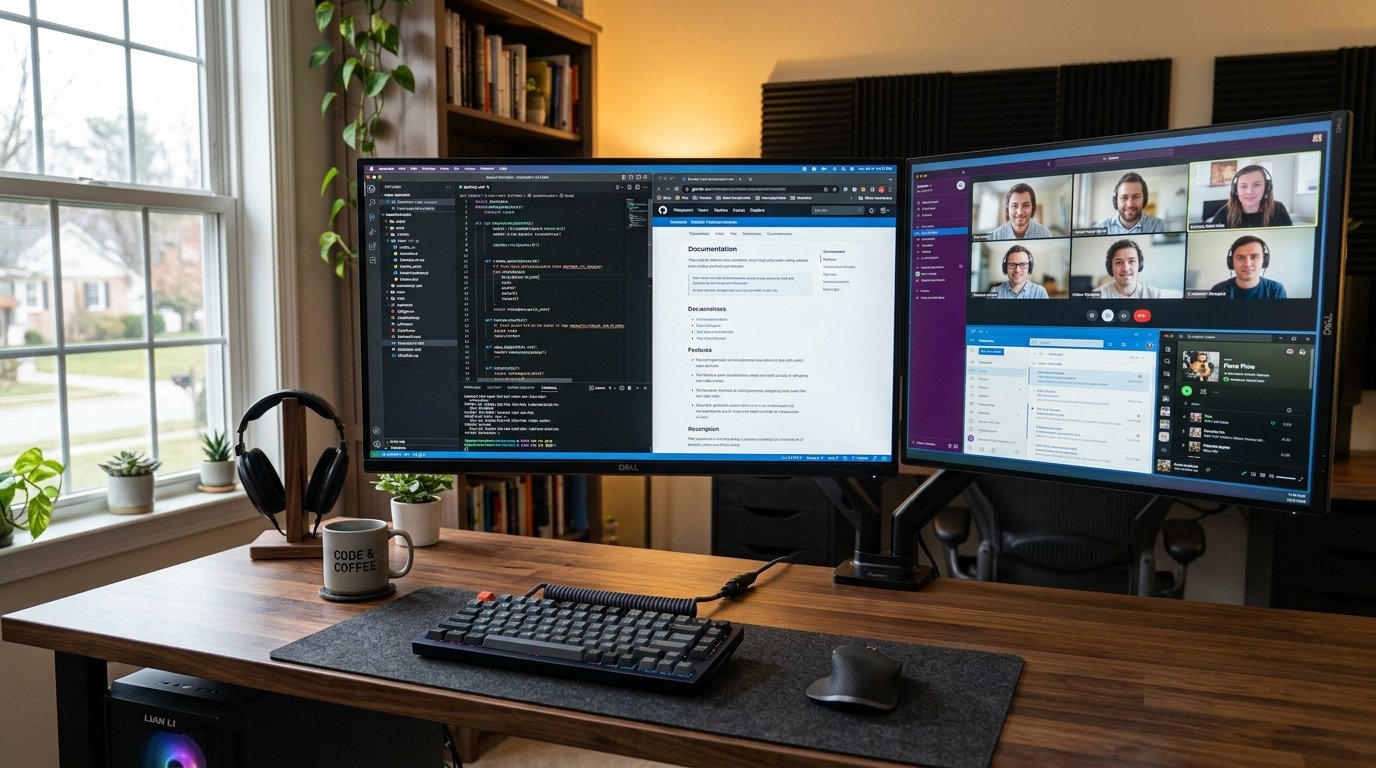
If you spend 80% of your workday focused on a main application (such as a code editor, browser, or writing document), position your primary display directly centered in front of your keyboard. Place your secondary screen immediately off to one side at a gentle 20 to 30-degree inward angle toward your eyes in your desk arrangement.
Placing the seam between two screens directly in the middle forces your head to turn left and right continuously, causing severe neck fatigue over time. Only use a centered bezel seam if you spend exactly 50/50 equal time actively working across both monitors simultaneously.
Positioning your secondary display at an inward angle allows your peripheral vision to capture incoming notifications without forcing full neck rotation. This subtle ergonomic tweak offloads your sternocleidomastoid neck muscles and prevents upper back fatigue during 8-hour work shifts.
2. Match Display Heights to Eliminate Head Tilting
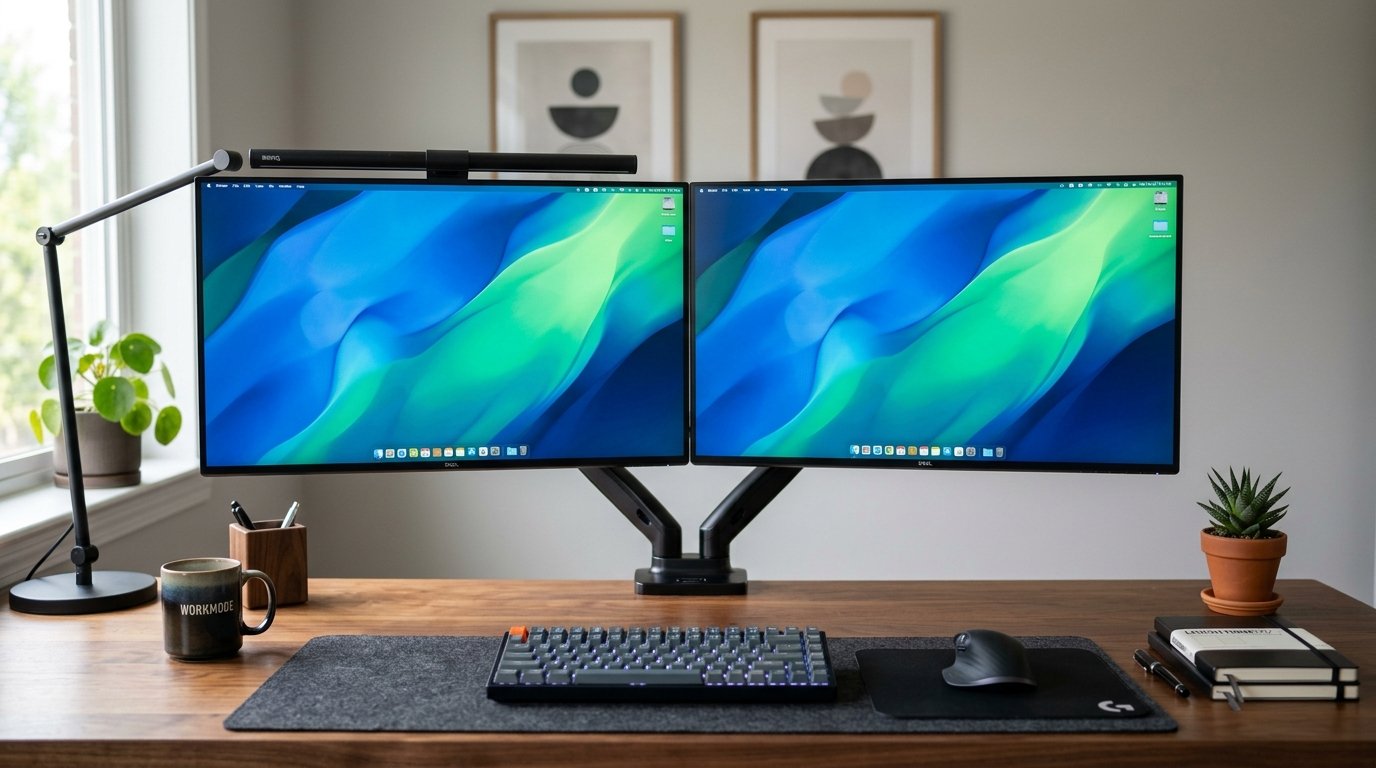
Glancing back and forth between screens positioned at uneven height levels forces your cervical spine muscles to make micro-adjustments constantly. Over several hours, this vertical head tilting leads to upper back tension and tension headaches.
To optimize your dual monitor remote work setup, align the top horizontal bezel edges of both displays level with each other at your natural seated eye height. This level alignment ensures your gaze glides horizontally across screens, maintaining fluid mouse tracking and eliminating neck strain.
If you are mixing different screen sizes (such as a 27-inch primary monitor and a 24-inch secondary screen), align their top horizontal edges rather than bottom edges. Aligning top edges matches your natural eye scan line perfectly when switching between documents.
3. Use an Articulating Arm for Your Dual Monitor Remote Work Setup
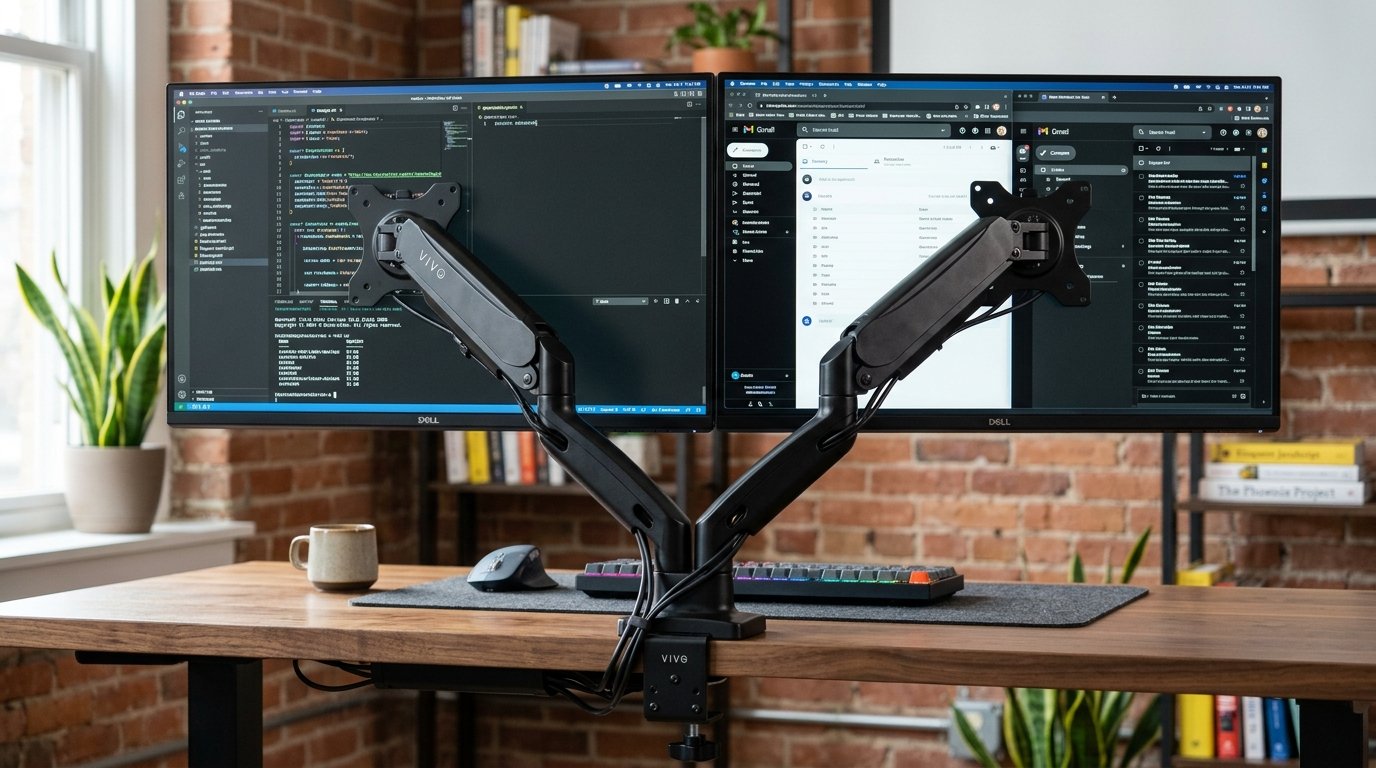
Standard manufacturer monitor stands consume immense desk real estate and offer limited height and tilt adjustments. Installing a gas-spring dual monitor arm clamp elevates both displays floating above your desk surface instantly.
Floating your displays frees up valuable desk space underneath for your keyboard, desk mat, and note-taking accessories. Heavy-duty gas-spring arms allow you to push, pull, rotate, and tilt both screens effortlessly with a single finger touch.
When selecting a dual monitor arm, verify its maximum weight capacity per arm (typically 17.6 lbs or higher for 27-inch 4K displays). Gas-spring arms feature adjustable tension screws that allow you to balance heavier displays so they float securely without drooping.
4. Try Vertical Monitor Orientation for Document Reading
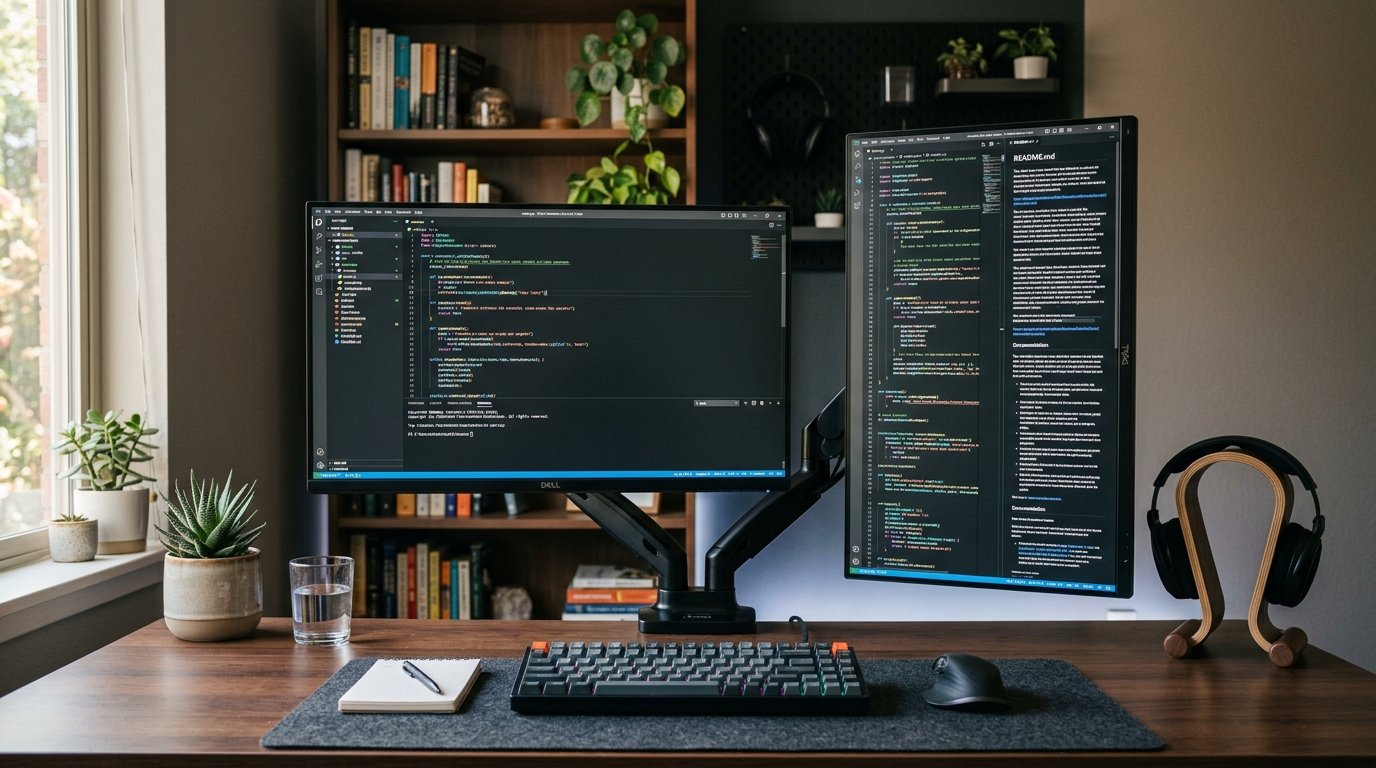
Rotating your secondary screen into a 90-degree portrait (vertical) orientation is a revolutionary hack for software developers, writers, and data analysts. Vertical displays show entire PDF pages, long lines of code, and Slack chat channels without requiring endless scrolling.
A vertical monitor screen also reduces horizontal desk footprint significantly, making a dual monitor remote work setup fit comfortably onto smaller 48-inch home office desks without crowding your workspace.
Ensure your secondary monitor has IPS panel technology with wide viewing angles before rotating it vertically. Cheaper TN panels suffer from severe color distortion and washing out when rotated 90 degrees, whereas IPS panels deliver crisp visual clarity from any viewing angle.
5. Match Display Colors Across Your Screens
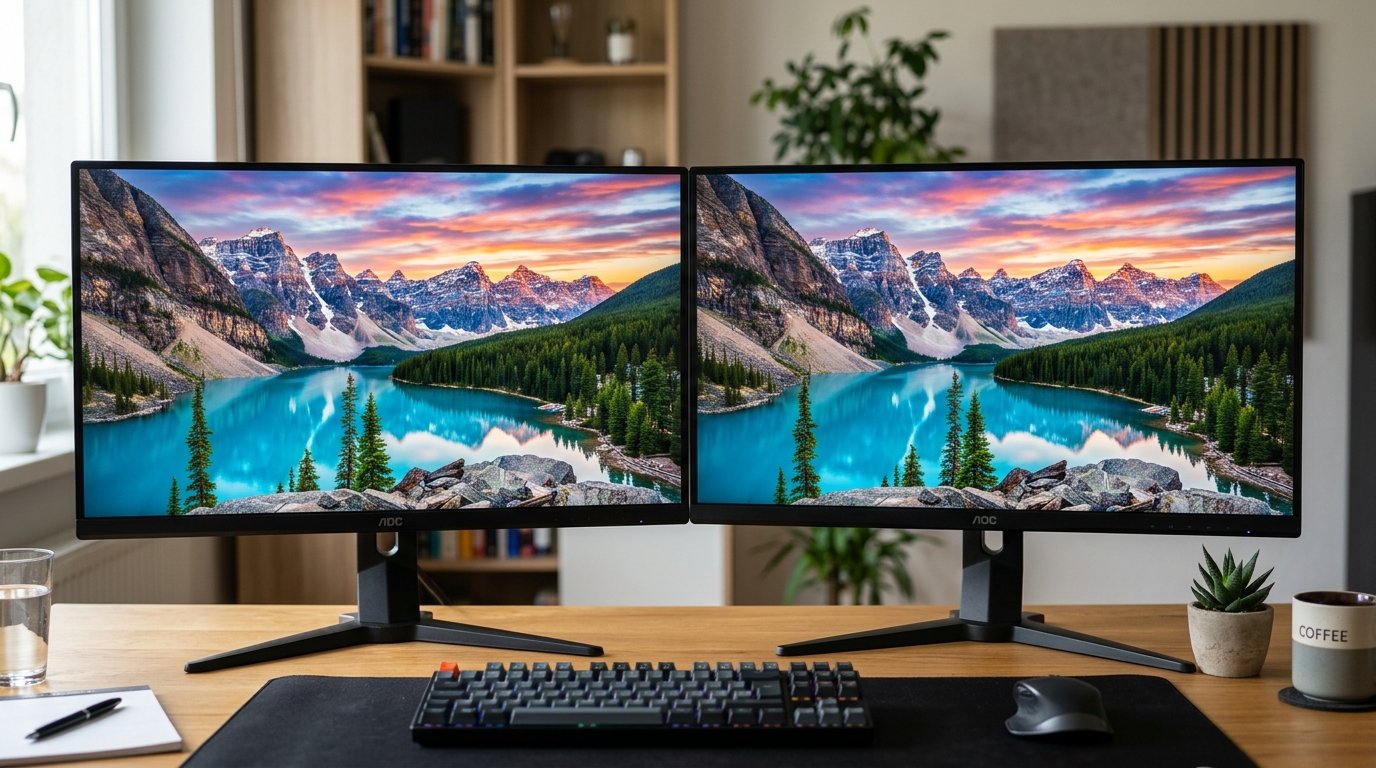
Dragging windows between one vibrant, high-brightness screen and a dull, dim secondary screen causes rapid visual fatigue. Your eyes must constantly dilate and adjust to varying light levels as you look back and forth.
“Visual harmony across displays is essential. Calibrating matching color profiles and brightness levels reduces eye strain during long multi-screen work shifts.”
— Display Engineering Standards
Calibrate both displays to matching color temperatures (6500K daylight) and equal brightness levels. If possible, choose monitors with identical panel types (IPS) and matching refresh rates to ensure smooth cursor transitions across your dual monitor remote work setup.
Use display management utilities (like DisplayFusion or macOS Display Settings) to synchronize color profiles across non-identical screen brands, ensuring red, green, and blue hues render consistently as you drag graphic windows between screens.
6. Implement Thunderbolt Docking for Single-Cable Power
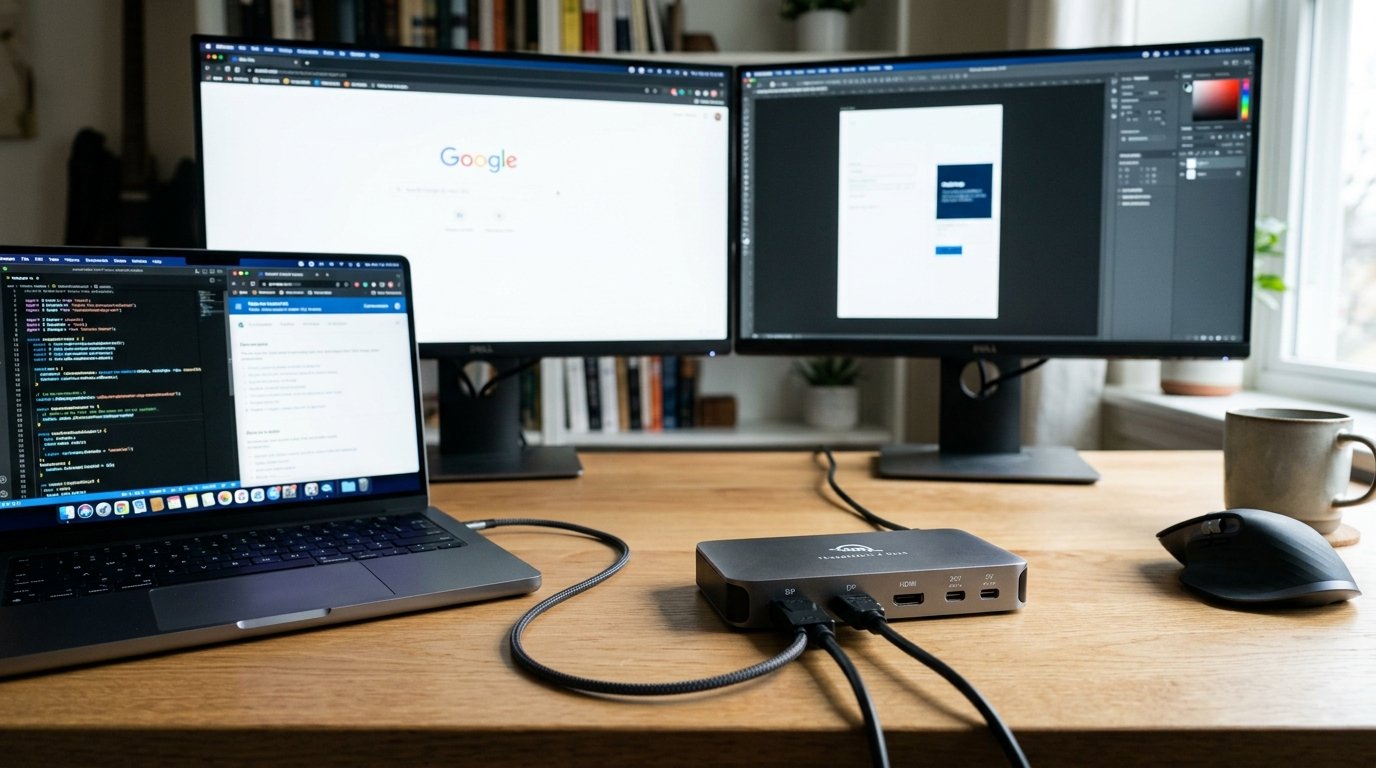
Plugging multiple HDMI, DisplayPort, and charging cables directly into your laptop creates a tangled web of cords that makes un-docking your laptop frustrating. Use a powered Thunderbolt 4 or USB-C docking station.
A high-quality docking station routes dual 4K video signals, audio, power delivery, and USB peripherals through a single cable plugged into your laptop, keeping your desk ultra-clean and easy to manage.
Choose docking stations offering at least 85W to 100W pass-through power delivery. High-wattage power delivery ensures your laptop remains fully charged during heavy video rendering or multi-threaded compiling tasks without needing a separate brick charger.
7. Utilize Display Scaling to Reduce Eye Fatigue
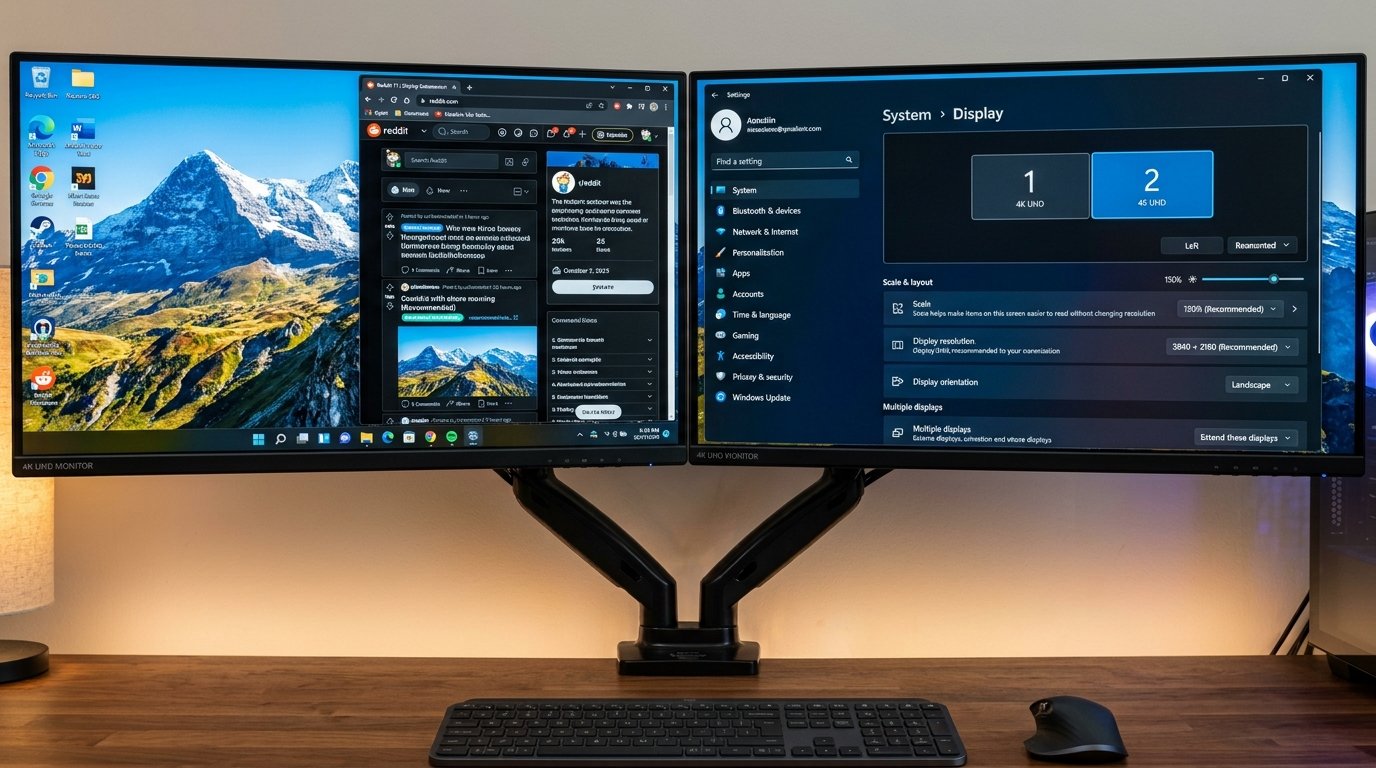
Running high-resolution 4K monitors at 100% native scaling makes system text tiny, forcing you to lean forward and strain your eyes. Enable OS display scaling (such as 125% or 150% in Windows/Mac settings).
Proper display scaling keeps text, application icons, and menus crisp, large, and effortless to read while preserving sharp 4K screen clarity across your dual monitor remote work setup.
Match scaling factors logically between screens so window sizes don’t suddenly jump in scale when dragged across display boundaries. Proper UI scaling creates a natural desktop transition experience.
8. Organize Cable Channels Along the Monitor Arms
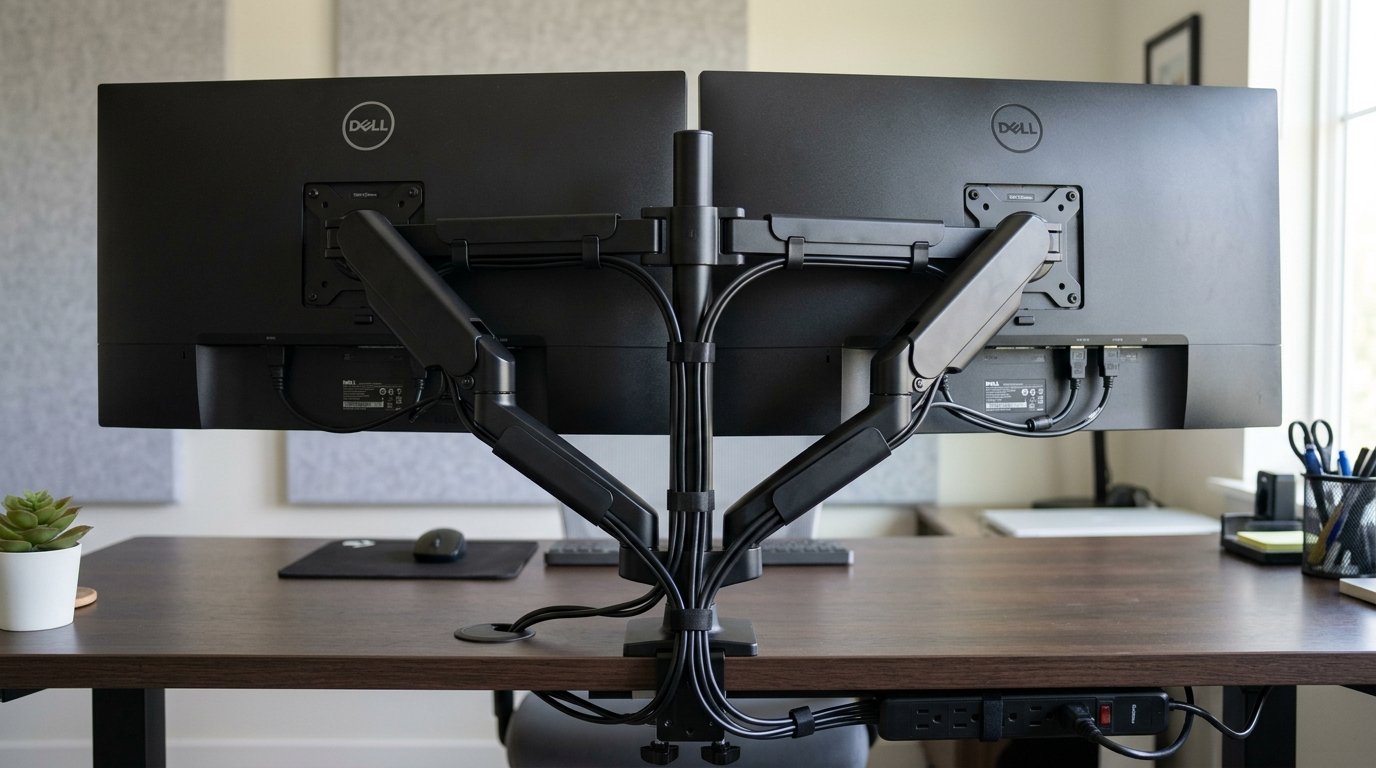
Dual screens double the number of power cords and video cables running down behind your desk. Route your cables through the built-in channels along your monitor arms, securing them with velcro ties to achieve a sleek floating appearance.
Mount an under-desk cable management tray underneath your desk surface to store power bricks and surge protectors out of sight. A clean, cable-free workstation eliminates visual distraction and promotes calm, focused work.
Q: Dual Monitor Remote Work Setup Budget vs. Premium Cost Guide
| Setup Component | Budget-Friendly Approach | Premium Investment |
|---|---|---|
| Secondary Monitor | 24-inch 1080p IPS display ($110) | 27-inch 4K USB-C display ($450+) |
| Monitor Arm | Dual desktop clamp arm ($40) | Dual gas-spring aluminum arm ($180) |
| Docking Station | Standard USB-C Hub ($35) | Thunderbolt 4 Docking Station ($250) |
Q: Myth vs. Fact
Myth 1: Two monitors always double your electricity bill.
Fact 1: Modern LED monitors consume very low power (around 20-30W each), making energy costs minimal.
Myth 2: Ultrawide monitors are always better than two separate screens.
Fact 2: Dual screens allow distinct full-screen app snapping and vertical orientation options that single ultrawides cannot replicate.
Myth 3: You need identical monitor models for a dual setup.
Fact 3: Mixing different sizes works great if height alignment and color profiles are adjusted properly.
Myth 4: Laptops cannot drive two 4K external monitors.
Fact 4: Most modern laptops with Thunderbolt 3/4 or DisplayLink support dual 4K displays effortlessly.
Myth 5: Dual monitors create too much visual clutter.
Fact 5: Mounting screens on an articulating dual monitor arm keeps your desk completely clear and organized.
Q: Frequently Asked Questions (FAQs)
Q: What is the best angle for dual monitors?
Angle your secondary monitor inward by 20 to 30 degrees toward your eyes so your peripheral vision can see the entire screen without turning your head.
Q: Can I connect two monitors to a laptop with only one HDMI port?
Yes. You can use a USB-C docking station or a DisplayLink adapter to drive dual external screens through a single USB port.
Q: Should dual monitors be positioned at eye level?
Yes. The top edge of both screens should sit level with your natural straight-ahead gaze to keep your neck in a neutral posture.
Ultimately, building a high-efficiency dual monitor remote work setup is one of the best ways to upgrade your productivity and multitasking capability. By centering your primary display, matching screen heights, and using a clean monitor arm, you create a powerful workspace. For more information on multi-display technology, read this guide on Multi-monitor display history. Also, check out our master guide on Ergonomic Remote Work Setup for complete workstation tips.
The Ultimate Ergonomic Remote Work Setup Guide
What is a Rose Toy? The Viral TikTok Wellness Trend Explained





2 Comments