
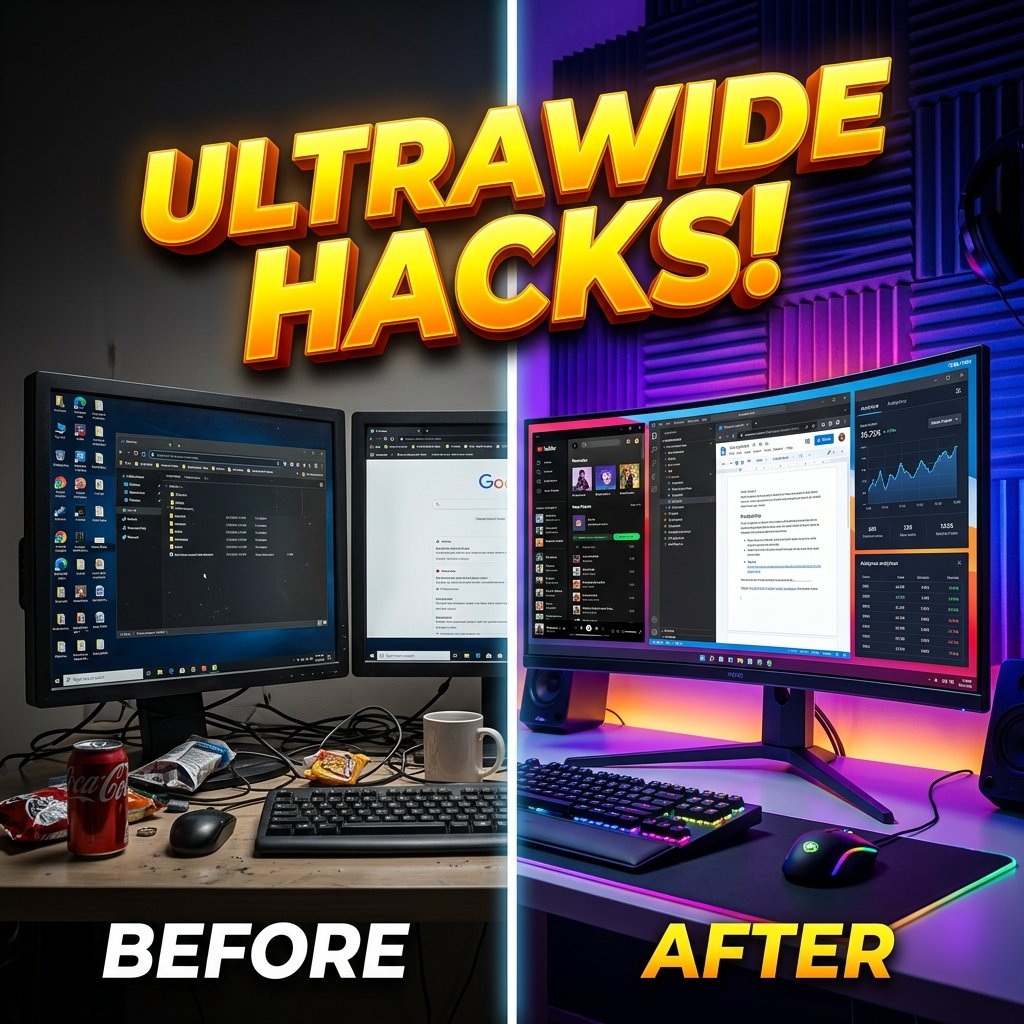
Ultrawide Monitor Remote Work Setup: 7 Best Ultimate Display Window Hacks
An ultrawide monitor remote work setup replaces distracting dual-monitor bezel gaps with a single seamless panoramic workspace. Featuring 21:9 or 32:9 aspect ratios, ultrawide displays provide expansive screen real estate ideal for managing multiple application windows side by side. However, without proper window management software and ergonomic mounting arms, large curved displays can cause neck strain and visual clutter. Optimizing screen layouts, scaling settings, and USB-C connectivity turns an ultrawide display into a productivity powerhouse.
For essential posture tips, read our ergonomic remote work setup guide and our dual monitor remote work setup guide.
Technical display aspect ratio benchmarks and standards can be reviewed on Wikipedia Ultrawide Display Formats.
1. Curved Screen Positioning in an Ultrawide Monitor Remote Work Setup
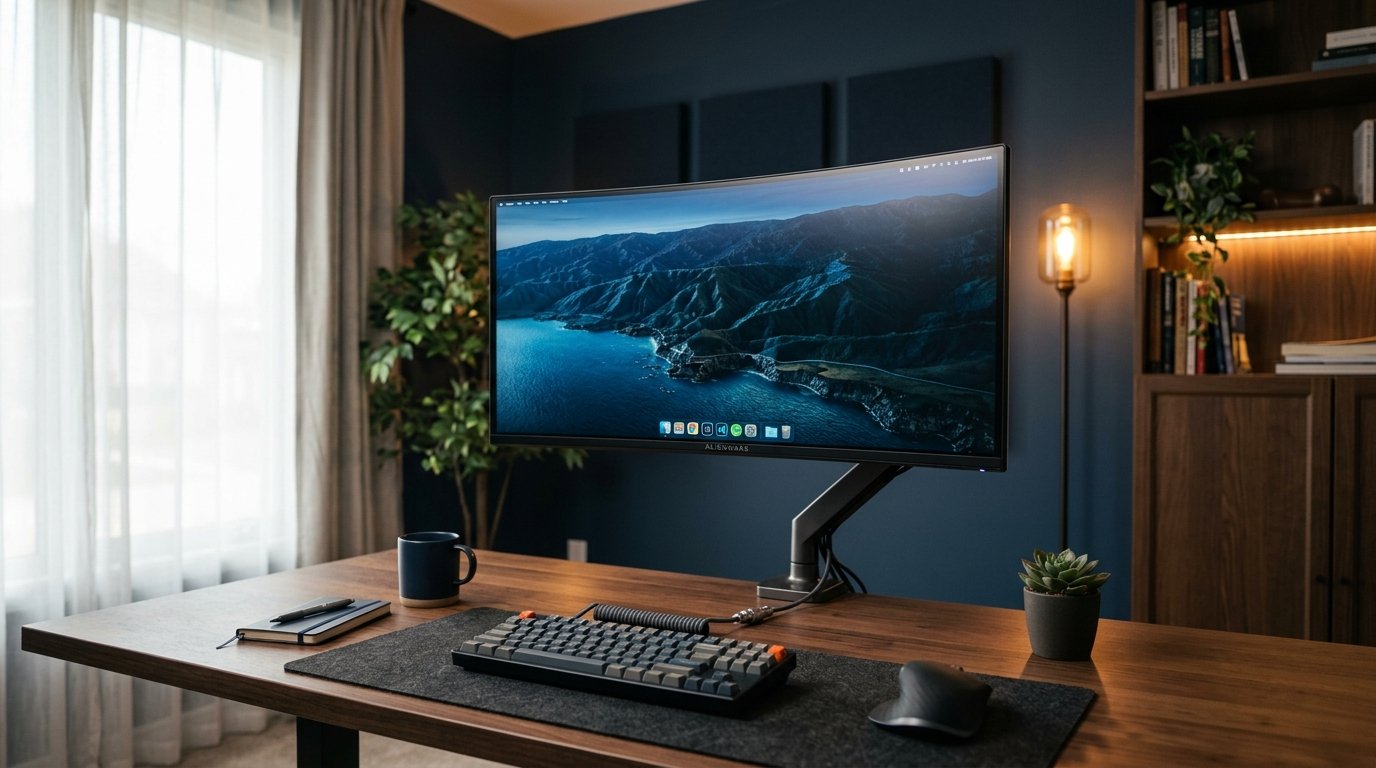
Proper screen positioning is critical to preventing neck fatigue in an ultrawide monitor remote work setup. Due to the expansive width of 34-inch to 49-inch panels, selecting a curved display (ranging from 1500R to 1000R curvature) ensures the outer edges of the screen remain at an equal focal distance from your eyes. The top edge of the monitor casing should align at or slightly below horizontal eye level, promoting a neutral head posture.
Utilizing a heavy-duty VESA gas-spring monitor arm enables precise height, tilt, and depth adjustment within your workstation. Standard factory desk stands often occupy valuable desk surface area and lack proper height articulation, making an aftermarket VESA mount an essential ergonomic upgrade.
2. Virtual Display Window Snapping in an Ultrawide Monitor Remote Work Setup
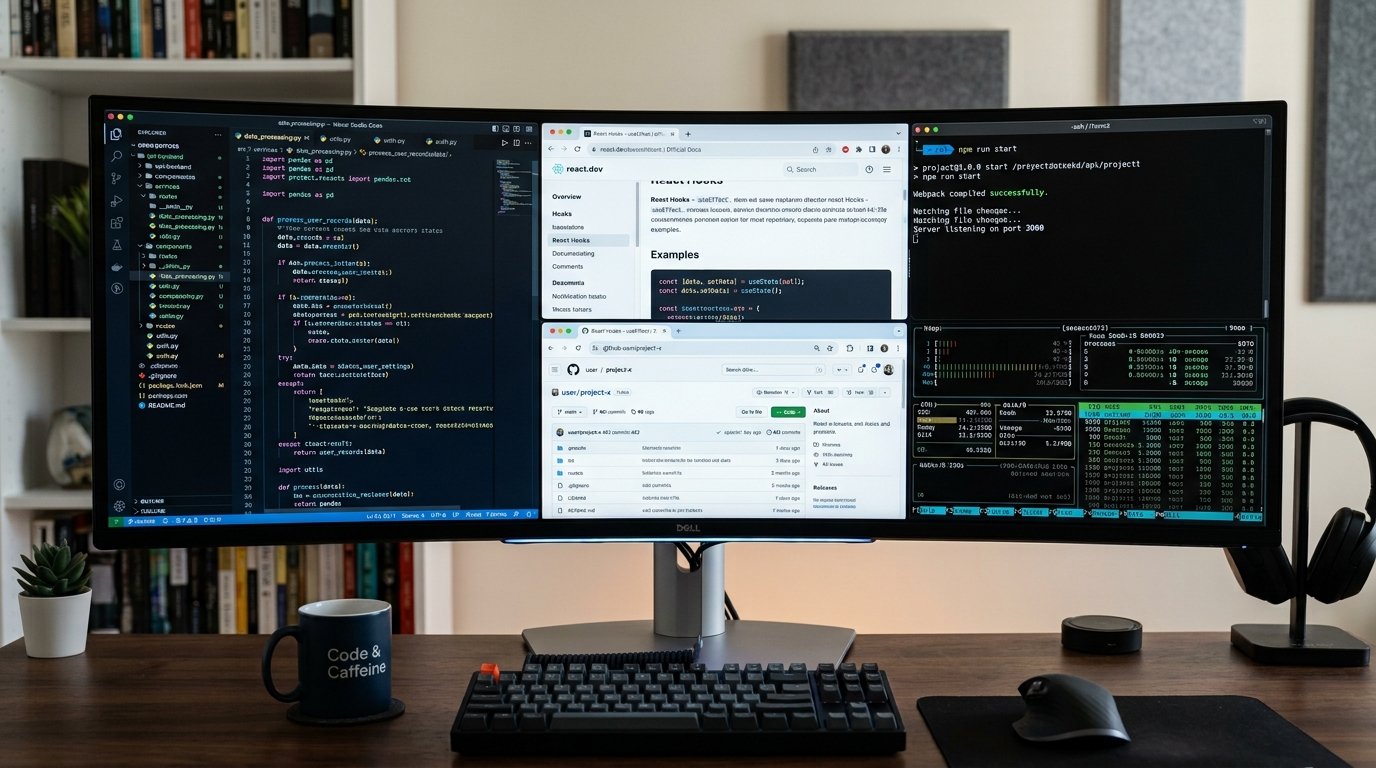
Without software window management, single application windows on a 21:9 screen stretch awkwardly across the entire display. In a high-efficiency ultrawide monitor remote work setup, tools like PowerToys FancyZones (for Windows) or Magnet/Rectangle (for macOS) create custom virtual display grids. A three-column grid layout (30% left / 40% center / 30% right) keeps primary tasks centered while reference materials flank the sides.
Automating shortcut keys to snap windows instantly into predefined zones eliminates manual window resizing. This structured layout streamlines complex multitasking across browsers, code editors, and communication channels.
3. Single-Cable USB-C Connectivity in an Ultrawide Monitor Remote Work Setup
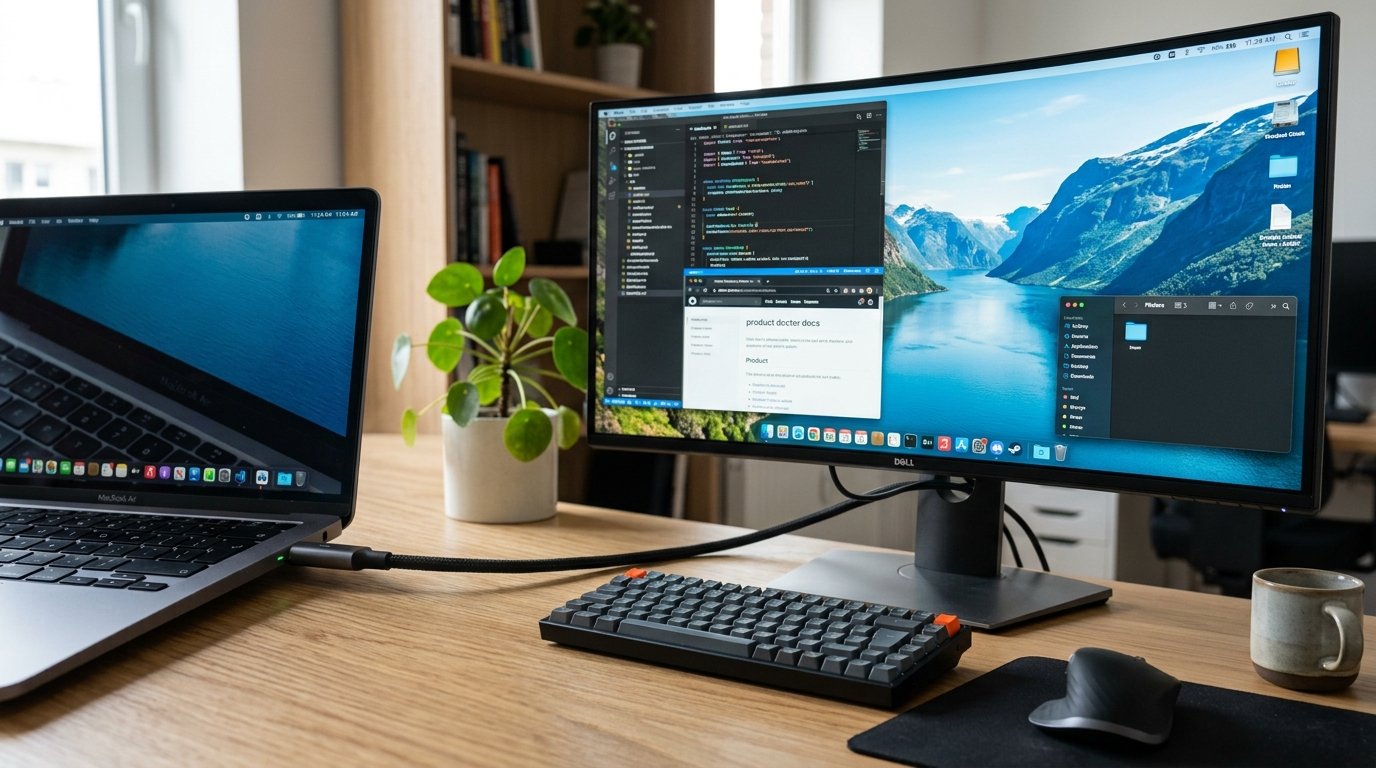
Modern displays feature built-in hub connectivity that simplifies cable management in an curved screen setup. High-end displays carry DisplayPort video signal, high-speed USB data, and up to 90W Power Delivery over a single cable interface. Plugging your laptop into the monitor automatically routes external keyboards, mice, and webcams connected to display rear ports.
Eliminating standalone desktop docks reduces clutter behind the monitor screen. Single-cable connectivity maintains a clean aesthetic while keeping your laptop charged throughout long work shifts.
“A single curved 34-inch ultrawide display combined with custom window snapping zones delivers seamless multitasking without screen bezel interruptions.”
Display Technology Ergonomics Report
4. Monitor Light Bars and Bias Lighting in an ultrawide workstation
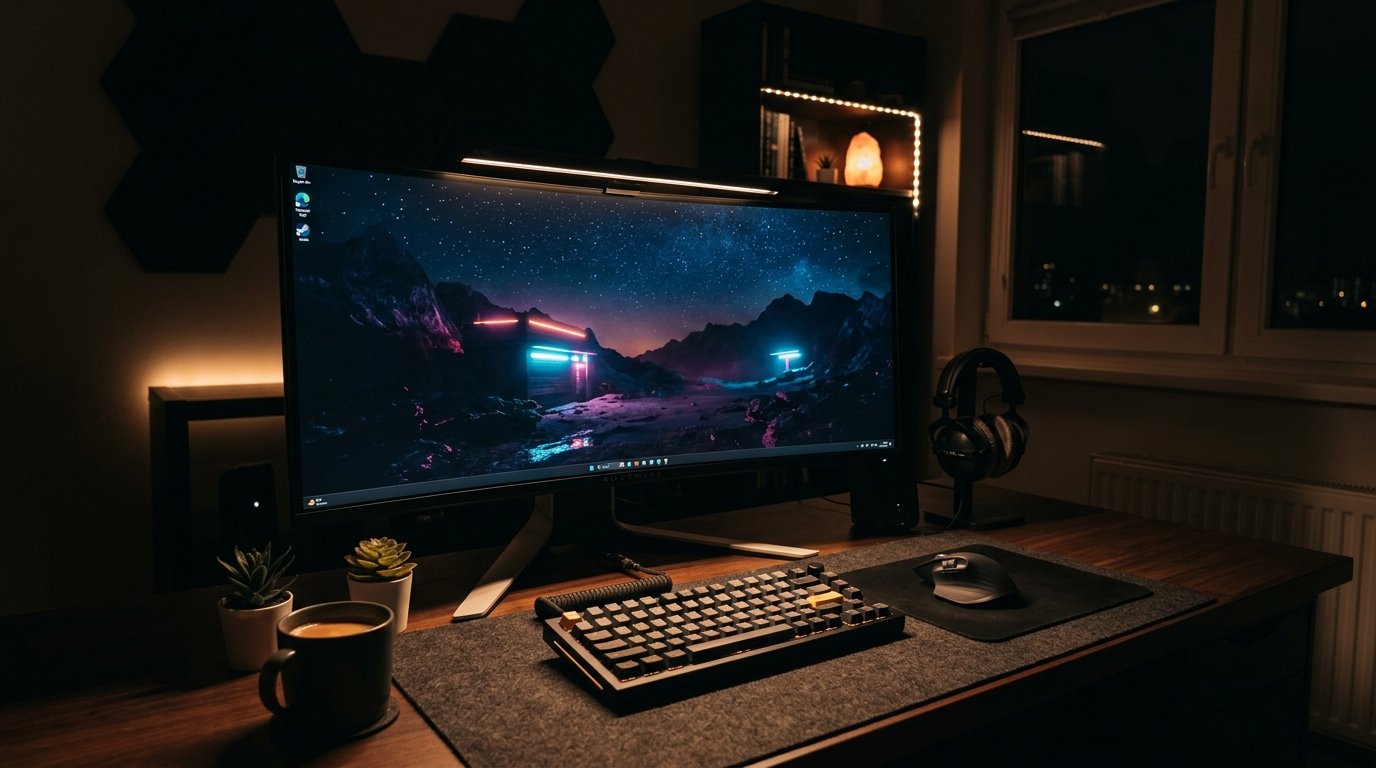
Expansive screen surfaces emit significant light that can cause ocular fatigue during late-night work hours. In an upgraded workstation, mounting an asymmetric LED monitor light bar on top of the curved screen projects warm glare-free light down onto your desk pad without reflecting off the screen surface.
Complementing a light bar with 6500K LED ambient bias lighting installed behind the monitor panel reduces contrast strain between the bright display and dark room walls. Proper illumination protects eye comfort during long focus sessions.
5. Screen Sharing Hacks for Virtual Calls in an ultrawide workstation
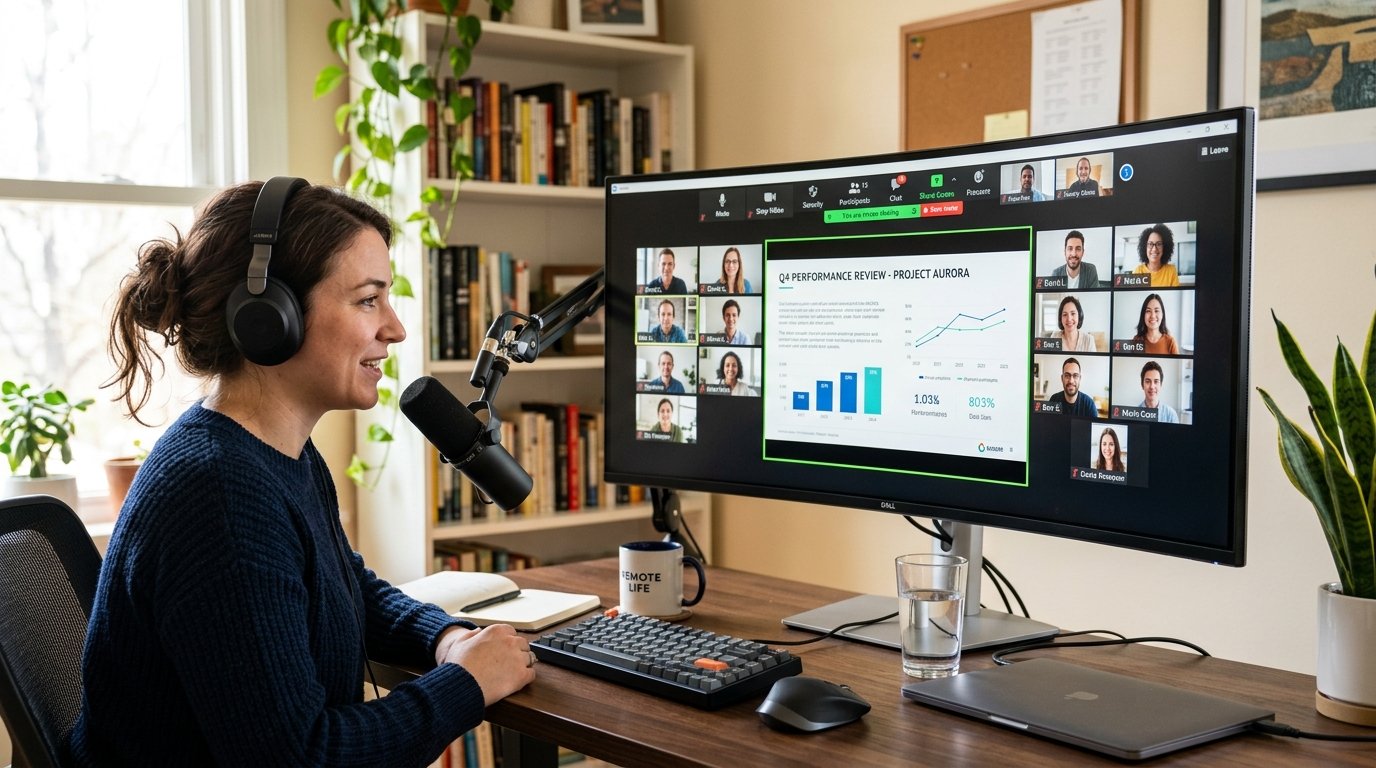
Sharing an entire 21:9 or 32:9 screen during video conference calls results in tiny, unreadable text for meeting participants using standard 16:9 monitors. In a professional ultrawide workstation, utilizing application-specific window sharing or virtual display software (such as OBS or BetterDisplay) crops screen broadcasts to standard 1080p resolutions.
Sharing a specific 16:9 window zone while keeping private notes and team chat visible on side screen zones prevents embarrassing screen share slips.
“Cropping ultrawide broadcasts to standard 16:9 ratios ensures remote clients view clean, legible presentation text during virtual meetings.”
Remote Collaboration Workflow Guide
6. Utilizing Built-In KVM Switches in an curved screen setup
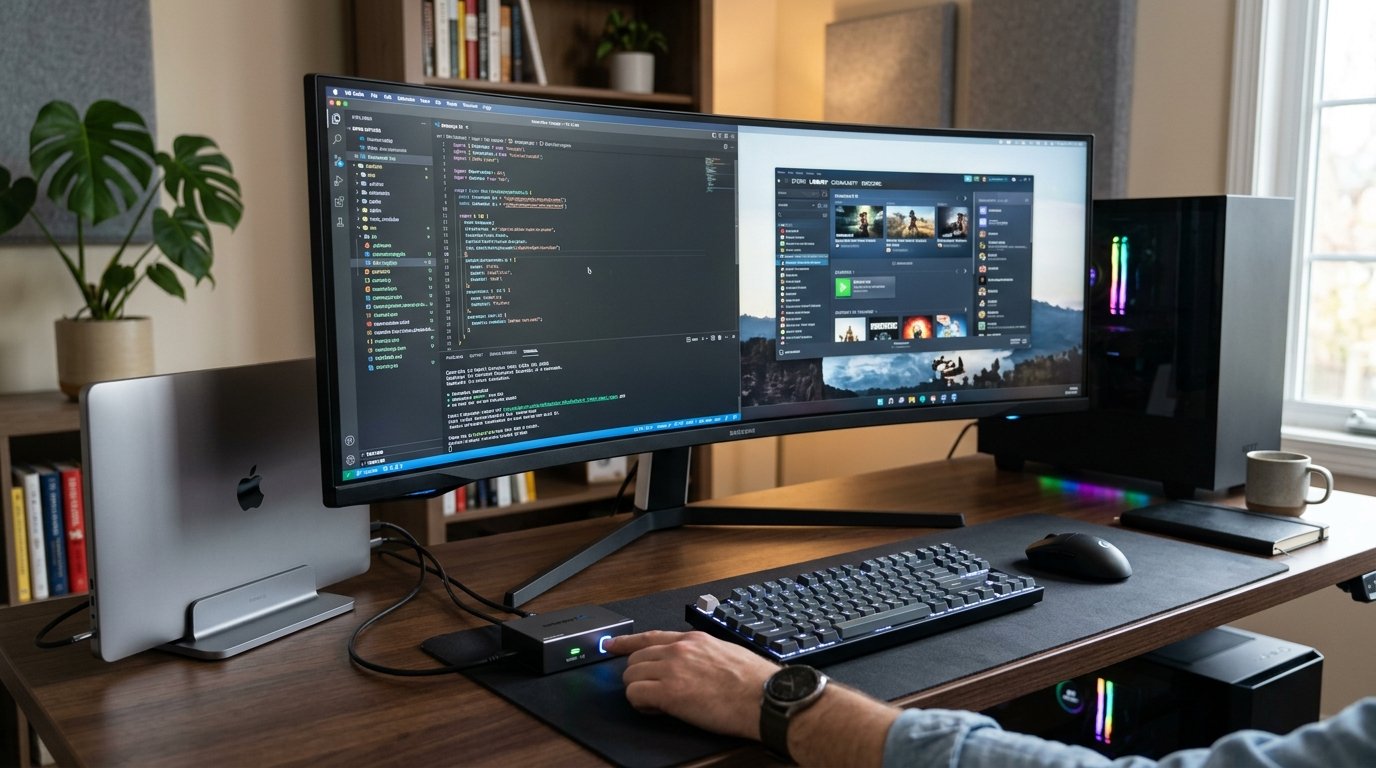
For remote workers managing both a company-issued laptop and a personal desktop rig, an curved screen setup equipped with an integrated hardware KVM switch offers effortless hardware sharing. A built-in KVM allows a single mouse and keyboard connected to the monitor to switch control between two host computers at the press of a hotkey.
Picture-by-Picture (PbP) modes split the ultrawide panel into two equal virtual 16:9 displays side-by-side. Operating dual host systems simultaneously on a single panel maximizes hardware versatility within your home office.
7. Selecting Desk Depth and Felt Desk Pads for an ultrawide workstation
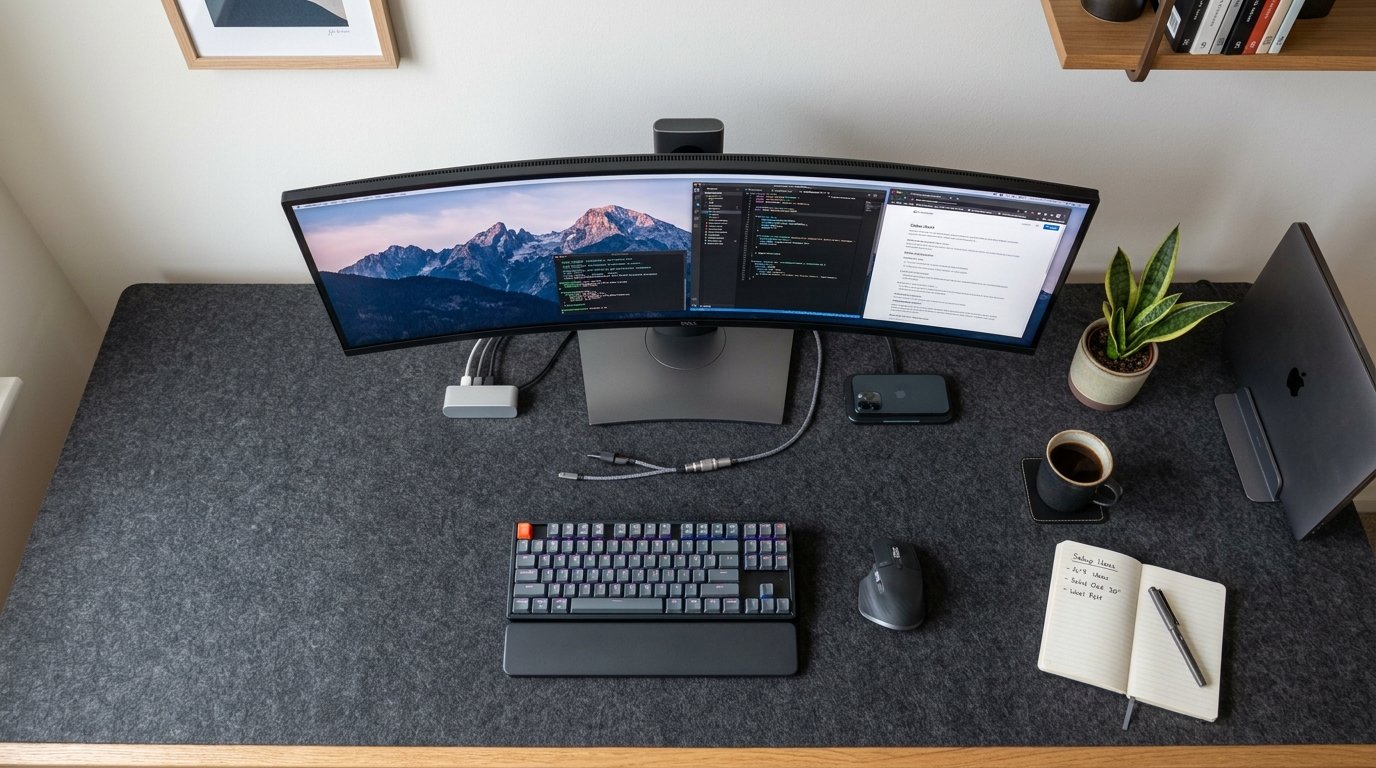
Ultrawide displays require deeper desktop surfaces to maintain appropriate viewing distance. Placing a 34-inch display on a shallow 24-inch desk positions the screen too close to your eyes, forcing uncomfortable head movements. A minimum desk depth of 30 inches ensures a healthy 28-to-36 inch viewing distance within your ultrawide workstation.
Layering a large wool felt desk mat underneath your keyboard and monitor arm base protects desktop wood finishes while dampening acoustic typing echoes. A full-coverage mat anchors your workspace elements into a clean visual frame.
Q: Budget vs. Premium Cost Guide for curved screen setup
| Component Category | Budget Friendly Option | Premium Professional Option |
|---|---|---|
| Ultrawide Monitor | 34-inch 1440p 100Hz Curved ($290) | 49-inch Dual QHD QD-OLED ($1,299) |
| Monitor Arm Mount | Heavy Duty Steel Arm ($65) | Ergotron HX Heavy Duty Arm ($340) |
| Light Bar | Baseus Screenbar Light ($35) | BenQ ScreenBar Halo ($179) |
| Desk Pad Mat | Neoprene Stitched Mat ($18) | Grovemade Wool Felt Desk Pad ($75) |
Q: Myth vs. Fact
Myth 1: Ultrawide monitors always distort standard 16:9 video content.
Fact 1: Modern media players center 16:9 video automatically with black side pillarboxes, maintaining original aspect ratios.
Myth 2: Any cheap desktop monitor arm can support a 34-inch ultrawide display.
Fact 2: Ultrawide panels require high-capacity monitor arms rated for 20+ lbs to prevent display sagging.
Myth 3: Dual 27-inch monitors are always superior to a single 34-inch ultrawide.
Fact 3: A single ultrawide display eliminates middle frame bezels and simplifies desktop cable management.
Myth 4: Screen sharing on an ultrawide monitor is impossible without distorting text.
Fact 4: Virtual display software and window sharing allow broadcasting crisp standard 1080p regions.
Myth 5: Curved screens cause noticeable reflection glare in bright rooms.
Fact 5: Matte anti-glare screen coatings and asymmetric monitor light bars neutralize ambient light reflections effectively.
Q: Frequently Asked Questions (FAQs)
Q: What is the minimum GPU requirement to drive a 34-inch ultrawide monitor?
Integrated graphics on modern Intel Core i5/i7, AMD Ryzen, or Apple Silicon M1/M2/M3 chips easily drive 3440x1440p ultrawide displays at 60Hz or higher for remote work applications.
Q: Is a 21:9 or 32:9 aspect ratio better for remote work productivity?
A 21:9 aspect ratio (34-inch) offers an ideal balance of screen real estate without requiring wide head movement, while 32:9 (49-inch) suits intense data traders and multi-system workflows.
Q: How do I fix window snapping on macOS for an ultrawide monitor?
Installing lightweight third-party applications like Rectangle or Magnet provides customizable keyboard shortcuts for half, third, and quarter window snapping on macOS.
Q: Does a curved monitor reduce eye strain compared to a flat screen?
Yes, screen curvature keeps display edges at an equal focal distance from your eyes, reducing the need for continuous visual refocusing across wide screens.
Upgrading to an ultrawide workstation delivers an immersive panoramic workspace that eliminates bezel distractions. By combining curved screen ergonomics with VESA monitor arms, window snapping software, and single-cable USB-C power delivery, remote workers build an organized, high-output home office environment.