

Macbook Remote Work Setup: 8 Ultimate Productivity Workstation Hacks
A macbook remote work setup provides incredible flexibility for modern remote professionals, but transforming a compact laptop into a high-performance desktop workstation requires strategic planning. While Apple Silicon M-series chips deliver exceptional thermal efficiency and battery endurance, prolonged typing directly on a laptop keyboard leads to cervical spine strain and rounded shoulder posture. By combining clamshell mode, single-cable Thunderbolt 4 docking stations, and ergonomic external peripherals, remote workers can build a workstation that balances sleek aesthetic design with heavy-duty multitasking power.
1. Clamshell Mode with Vertical Laptop Stands in a Macbook Remote Work Setup
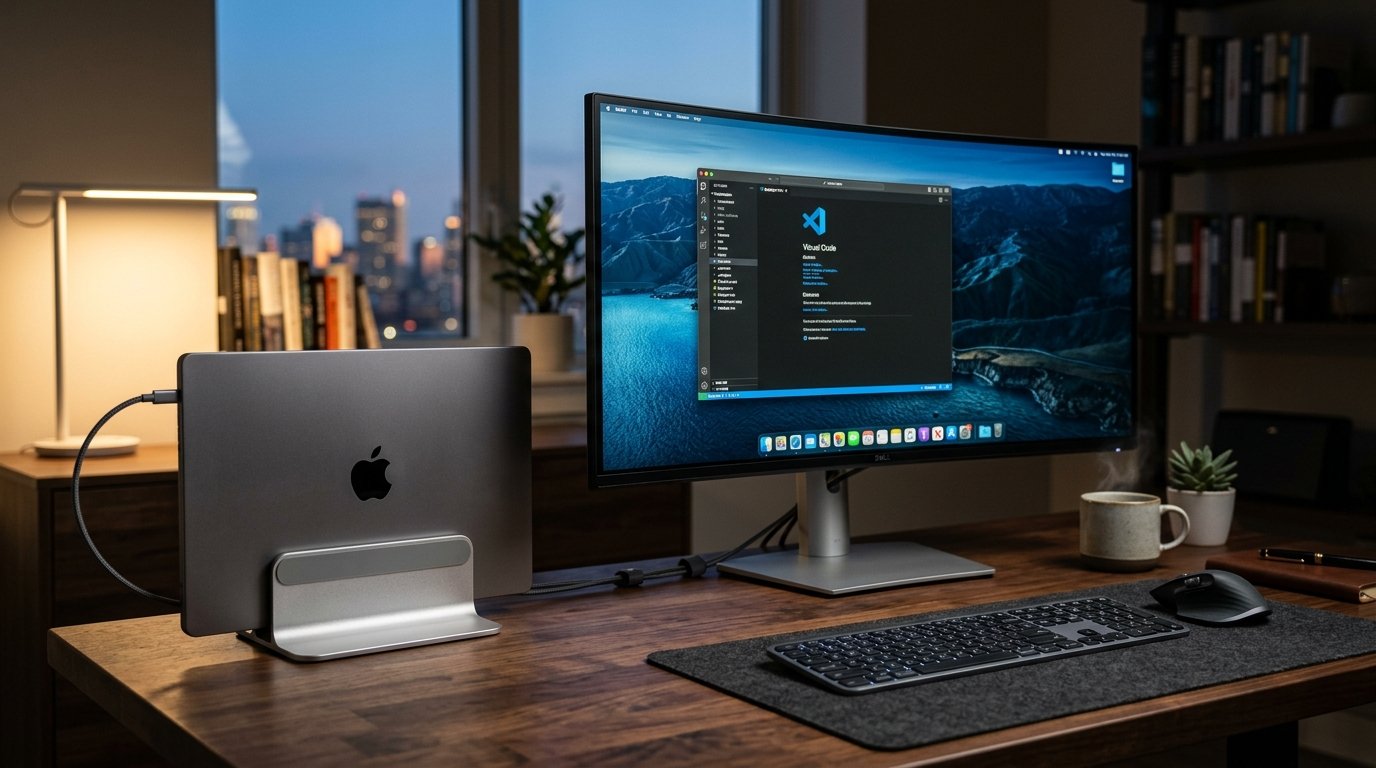
Running your laptop in closed clamshell mode is one of the most effective ways to reclaim desk space in a macbook remote work setup. When connected to external power and a monitor, macOS automatically drives full-resolution desktop displays while keeping the laptop screen closed. Utilizing a heavy-duty anodized aluminum vertical stand frees up to 70% of desktop surface area. Modern Apple Silicon MacBook Pro and MacBook Air models automatically manage thermal throttling when mounted vertically, allowing intake vents to pull cool air efficiently across the chassis bottom.
To optimize clamshell performance, ensure your macbook remote work setup uses a certified USB-C or Thunderbolt 4 cable capable of high-wattage Power Delivery (PD). This eliminates the need for separate charging cables, maintaining a single cable interface. Furthermore, positioning the vertical stand near the rear desk edge prevents accidental tip-overs while maintaining clean cable routing behind your main monitor.
2. Single-Cable Thunderbolt 4 Docks for a Macbook Remote Work Setup
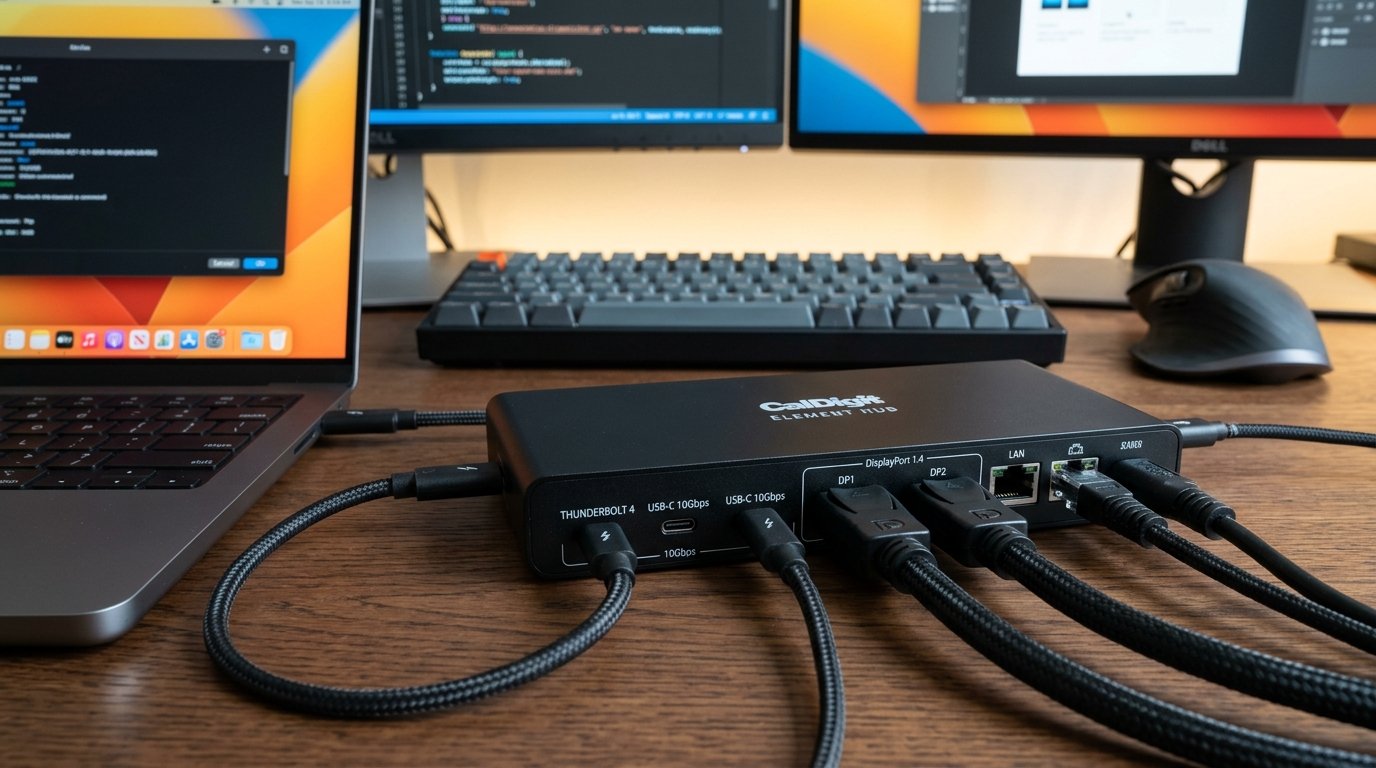
A high-performance Thunderbolt 4 docking station serves as the central neural hub of any advanced macbook remote work setup. Thunderbolt 4 offers a massive 40Gbps bandwidth stream, enabling single-cable connectivity for 4K dual displays, high-speed NVMe external storage arrays, USB audio interfaces, and gigabit Ethernet. Docks from CalDigit (such as the TS4) or Anker supply up to 98W of host charging power, ensuring your laptop battery stays fully topped off during intense video rendering or data processing sessions.
Integrating a dedicated dock into your macbook remote work setup eliminates constant plugging and unplugging of individual accessories. When transitioning from remote desk work to mobile travel, disconnecting a single Thunderbolt cable releases your workstation instantly. Ensure your dock includes front-facing SD card readers and fast-charging USB-A ports for convenient daily device access.
3. High-Resolution Display Scaling in a Macbook Remote Work Setup
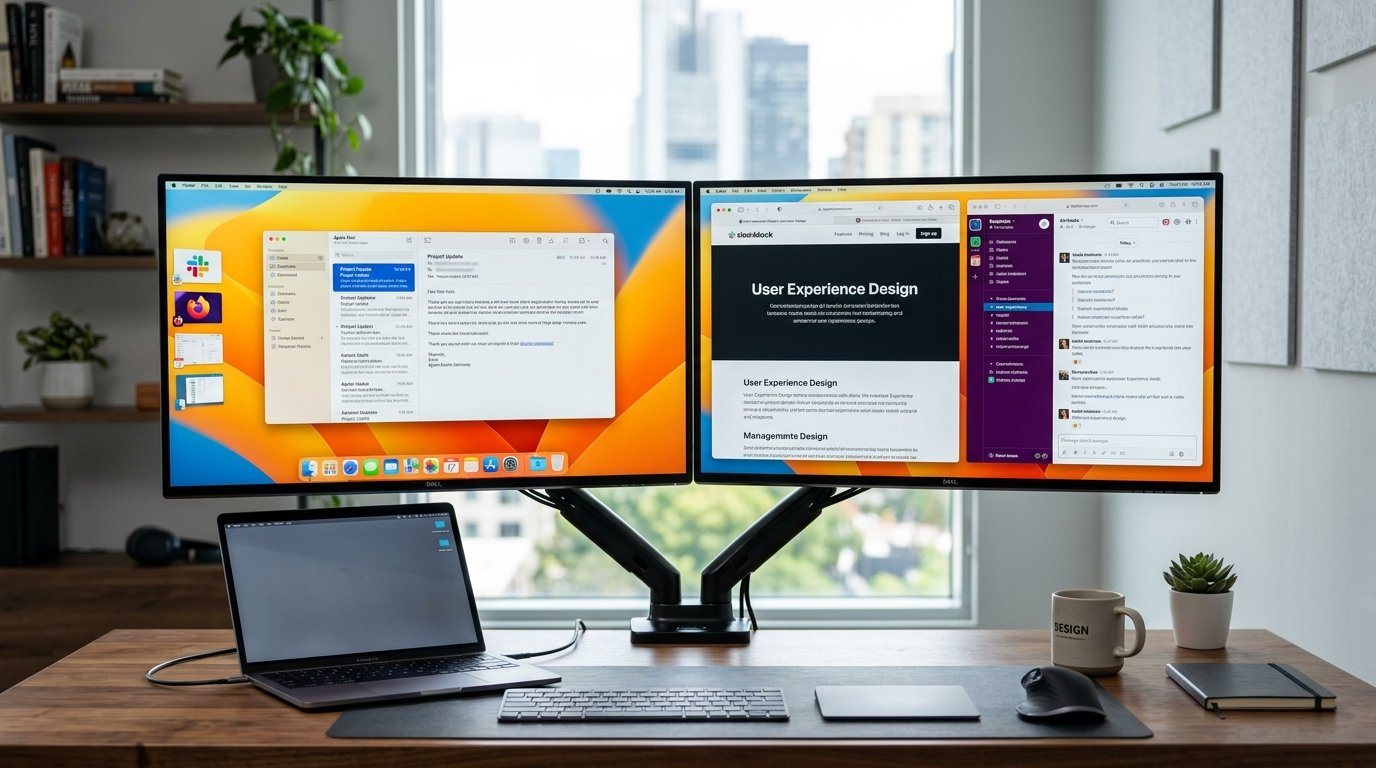
Achieving crisp, retina-like text clarity on external displays is crucial for reducing eye strain in a macbook remote work setup. macOS relies on specific pixel density targets (roughly 110 PPI or 220 PPI) to scale user interfaces smoothly without blurry fonts or GPU rendering artifacts. Pairing your MacBook with a 27-inch 4K monitor (or a 5K Studio Display) ensures native integer scaling that keeps code text, spreadsheets, and design assets razor sharp.
For users running multi-monitor configurations, leveraging macOS Stage Manager or third-party window management utilities like Rectangle or Magnet provides precise grid snapping. A dual-screen macbook remote work setup enables side-by-side reference workflows, allowing primary communication apps on one display while main productivity tasks occupy the primary screen.
“Optimizing macOS display scaling and leveraging single-cable Thunderbolt docks transforms a laptop from a portable compromise into a workstation that outperforms traditional desktop towers.” – Tech Workspace Ergonomics Review 2026
4. External Ergonomic Keyboards and Trackpads for a Macbook Remote Work Setup
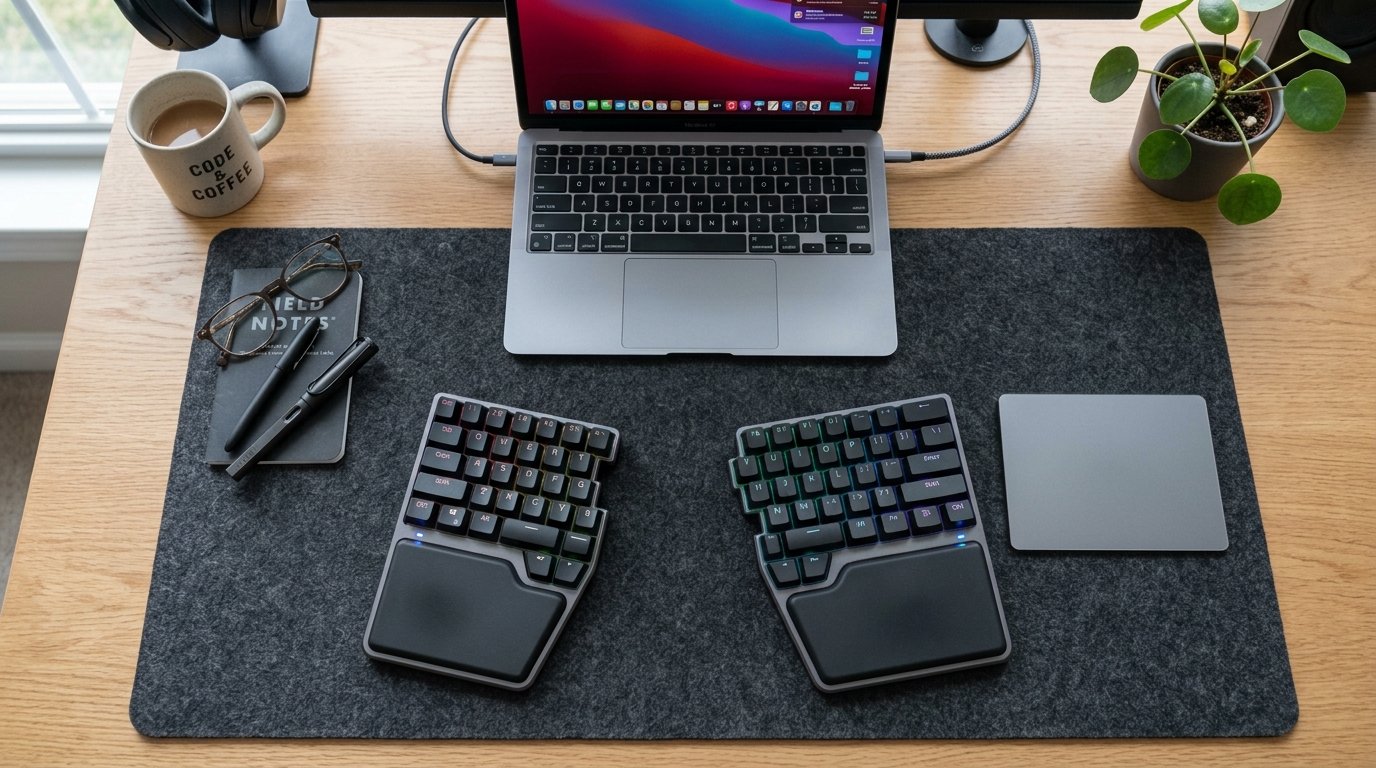
Relying solely on the built-in laptop keyboard forces the head downward into forward head posture. In an ergonomic macbook remote work setup, elevating the laptop on a stand or closing it in clamshell mode requires dedicated external input devices. Split mechanical keyboards (such as the ZSA Moonlander or Keychron Q-series) allow shoulders to open naturally, relieving upper trapezius tension and preventing carpal tunnel syndrome.
Pairing an ergonomic keyboard with the Apple Magic Trackpad 2 preserves intuitive macOS multi-touch gestures. Swiping between full-screen spaces, pinching to zoom, and invoking Mission Control remain seamless when the trackpad is positioned directly adjacent to your typing surface within your macbook remote work setup.
5. Organizing Workflows with macOS Stage Manager in a Macbook Remote Work Setup
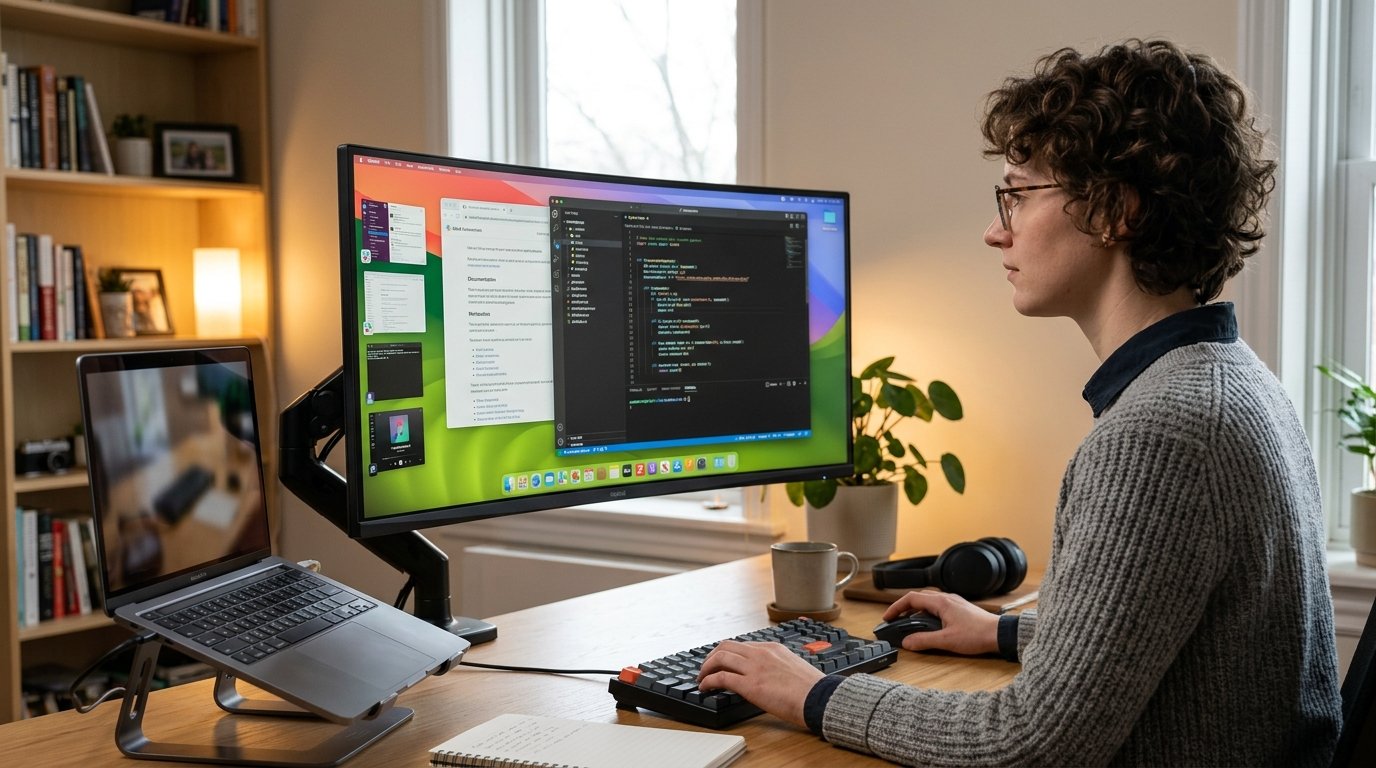
Digital clutter can degrade focus just as fast as physical desktop mess. In a macbook remote work setup, configuring macOS Stage Manager organizes active window groups into clean visual stacks along the left edge of the display. This allows instant context switching between client communication clusters, creative production apps, and research browsers without losing window position.
Creating task-specific spaces within your macbook remote work setup reduces cognitive fatigue. By assigning dedicated desktop spaces to communication platforms (Slack, Zoom) and core production tools (VS Code, Figma), remote professionals maintain deep work flow states throughout the workday.
6. Studio-Quality Audio and Camera Rigs in a Macbook Remote Work Setup
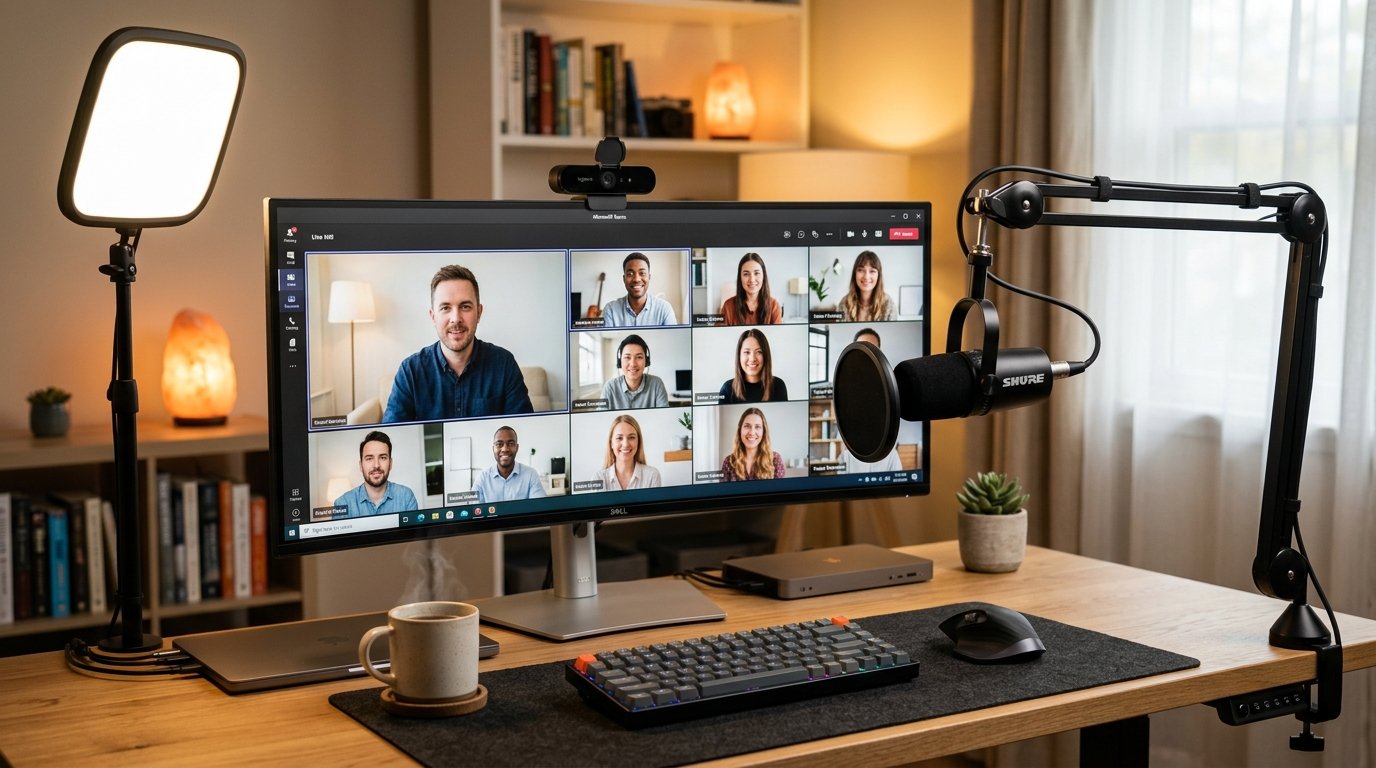
Remote video collaboration demands crisp audio clarity and flattering lighting. While modern MacBook webcams have improved, an upgraded macbook remote work setup incorporates an external 4K webcam or utilizes macOS Continuity Camera to mount an iPhone as a high-end camera sensor. Combined with Studio Light effect and Desk View, remote presentations look crisp and professional.
For voice isolation, adding a cardioid USB microphone (such as the Shure MV7 or Elgato Wave:3) mounted on a low-profile boom arm eliminates room reverb and keyboard click noise. High-quality audio ensures clear communication during virtual client meetings and remote team check-ins.
“Superior mic placement and external lighting turn routine video meetings into high-impact remote presentation experiences.” – Virtual Workspace Design Journal
7. iPad Sidecar and Universal Control in a Macbook Remote Work Setup
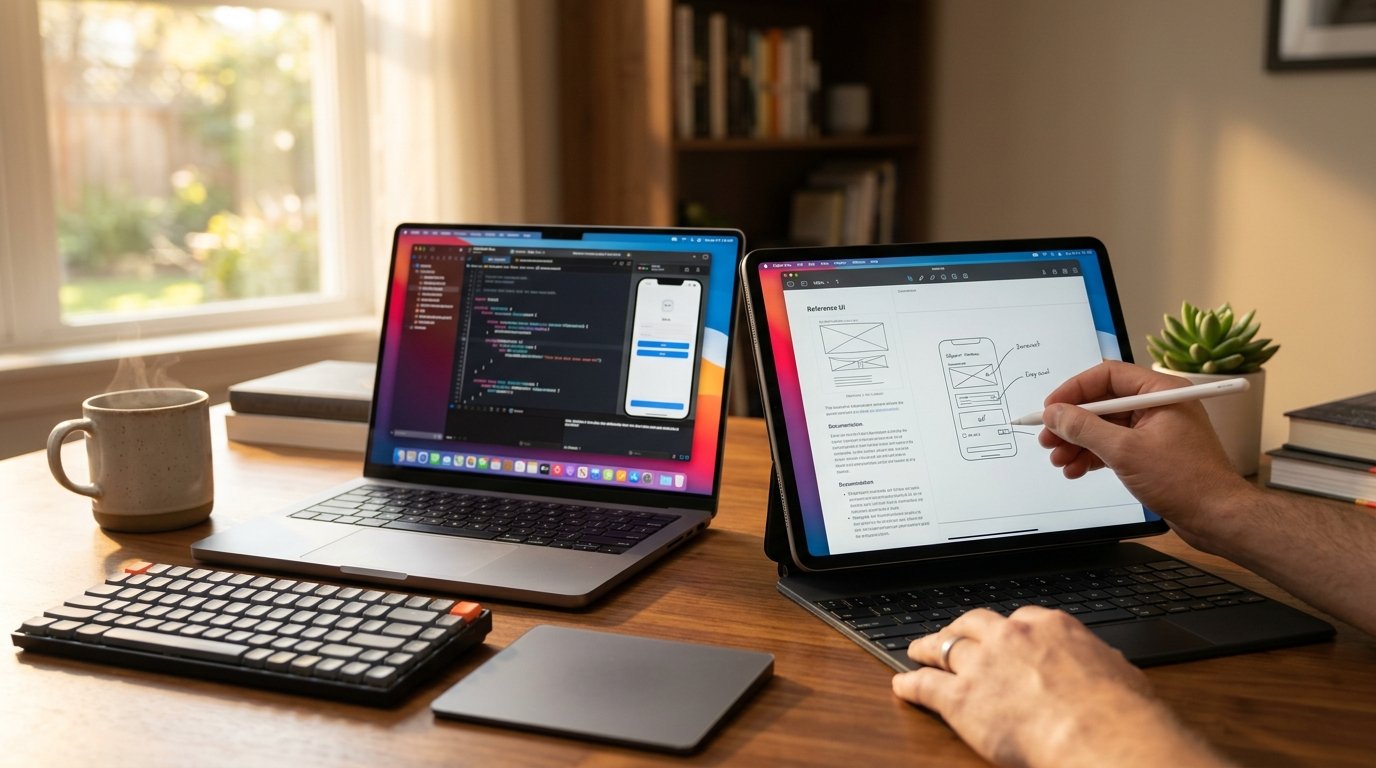
Apple ecosystem features like Sidecar and Universal Control expand the functional screen real estate of your macbook remote work setup without adding heavy hardware. Sidecar allows an iPad Pro to function as an external wirelessly connected second monitor, complete with touch and Apple Pencil input for digital sign-offs or creative sketching.
Alternatively, Universal Control enables a single mouse cursor and keyboard to glide seamlessly between your MacBook and iPad. Dragging files, copying clipboard text, and controlling mobile reference applications across devices streamlines multi-device workflows within your macbook remote work setup.
8. Cable Routing and Power Delivery in a Macbook Remote Work Setup
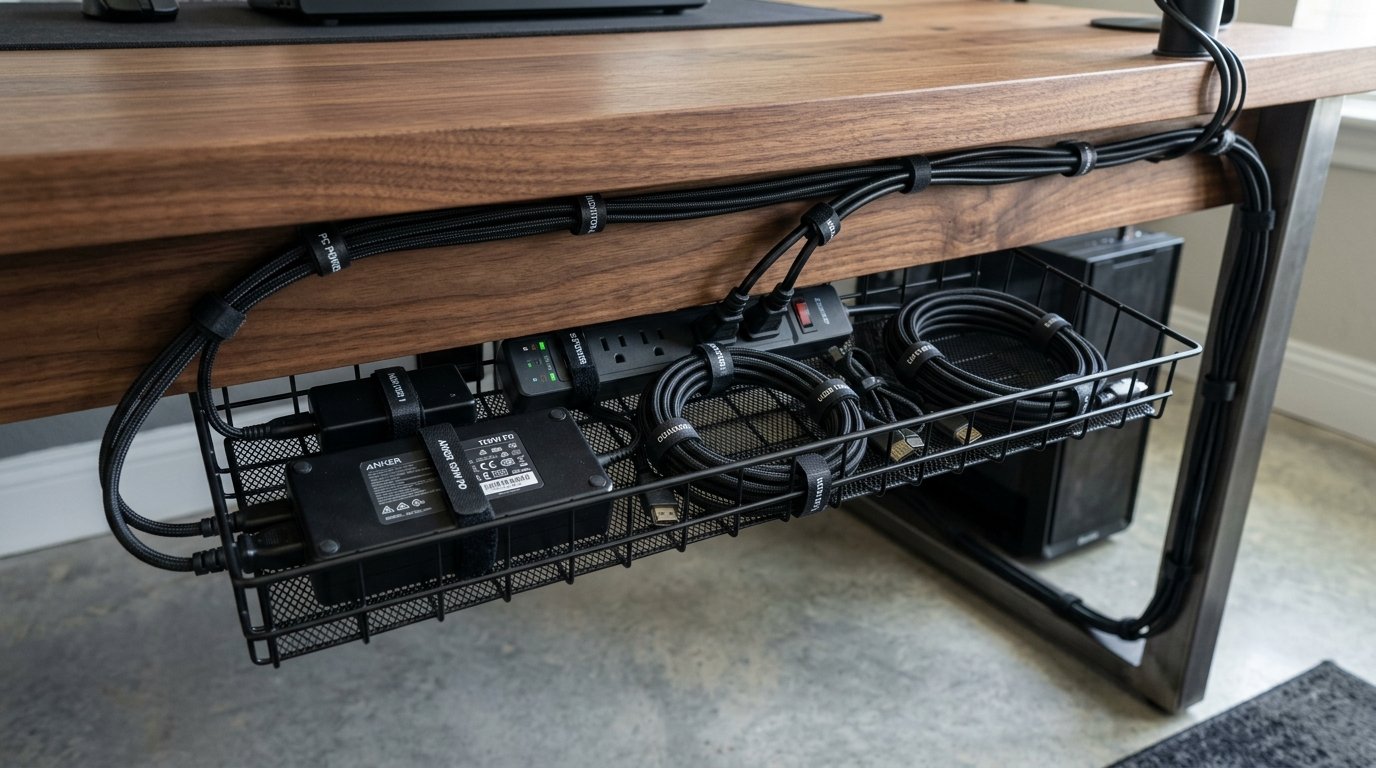
A high-performance macbook remote work setup can quickly become tangled with monitor cords, power bricks, and peripheral cables if left unmanaged. Utilizing an under-desk steel cable wire tray or J-channel raceway keeps power strips and bulky adapters hidden beneath the desktop surface. Braided cable sleeves bundle monitor power and host Thunderbolt cables together for a clean vertical run.
Mounting your surge protector directly beneath the desk frame ensures only a single main power cord extends to the wall outlet. Proper cable management protects delicate USB-C ports from accidental tension tugs while maintaining a clean, distraction-free home office environment.
Q: Budget vs. Premium Cost Guide
| Component Category | Budget Friendly Option | Premium Professional Option |
|---|---|---|
| Vertical Laptop Stand | Foldable Aluminum Riser ($25) | Twelve South BookArc ($60) |
| Docking Hub | USB-C 7-in-1 Hub ($45) | CalDigit TS4 Thunderbolt 4 ($380) |
| External Display | 27-inch 4K IPS Monitor ($280) | 27-inch Apple Studio Display ($1,599) |
| Input Devices | Logitech K380 + Silent Mouse ($50) | Ergonomic Split Keyboard + Magic Trackpad ($350) |
Q: Myth vs. Fact
Myth 1: Running a MacBook in closed clamshell mode causes severe internal overheating.
Fact 1: Apple Silicon chips manage thermal limits dynamically, and vertical stands allow intake vents to dissipate heat safely.
Myth 2: Any USB-C cable supports full 4K 60Hz external display output.
Fact 2: Displays require high-bandwidth USB-C 3.2 Gen 2 or Thunderbolt 4 rated cables to output high refresh rates without flickering.
Myth 3: Leaving a MacBook plugged into a powered dock damages battery health.
Fact 3: macOS Optimized Battery Charging automatically holds battery charge levels at 80% when connected to desktop power continuously.
Myth 4: Non-Apple external monitors cannot display sharp text on macOS.
Fact 4: Displays with proper pixel density (110 PPI or 220 PPI) render sharp fonts when set to native scaled resolution settings.
Myth 5: Wireless keyboards create input lag during daily remote work.
Fact 5: Modern 2.4GHz wireless receivers and Bluetooth 5.0 protocols provide latency-free typing for remote work productivity.
Q: Frequently Asked Questions (FAQs)
Q: Can a single MacBook drive dual external displays?
Base Apple Silicon M1, M2, and M3 chips natively support one external display, while Pro and Max variants support dual or quad external displays. Base models can use DisplayLink certified docks for dual screen output.
Q: What is the optimal display scaling resolution for a 27-inch 4K monitor on macOS?
Setting the scaled resolution to “Looks like 2560×1440” provides an ideal balance of desktop screen real estate and sharp retina text rendering on a 27-inch 4K panel.
Q: Do I need a separate power adapter when using a Thunderbolt 4 dock?
No, high-end Thunderbolt 4 docks provide pass-through Host Power Delivery (ranging from 60W to 98W), which charges your MacBook directly through the data cable.
Q: How do I prevent my MacBook from sleeping when the lid is closed?
macOS automatically keeps the system awake in clamshell mode as long as the laptop is connected to external AC power, an external display, and a mouse or keyboard.
Building a high-performance macbook remote work setup transforms a mobile laptop into a comfortable, high-output desktop environment. By pairing closed clamshell positioning with single-cable Thunderbolt 4 docking, high-resolution display scaling, and split ergonomic peripherals, remote professionals maximize daily focus while keeping cord clutter completely under control.