
iPad Remote Work Setup: 7 Smart Mobile Productivity Workstation Tricks
An ipad remote work setup represents the ultimate fusion of mobile portability and high-efficiency digital productivity. Powered by Apple M-series processors, modern iPad Pro and iPad Air models operate as capable standalone remote workstations. Whether working from airport lounges, client offices, or home desks, transforming a touchscreen tablet into a ergonomic workstation requires the right combination of magnetic floating keyboards, USB-C hubs, and external display scaling.
1. Floating Cantilever Keyboard Stands in an iPad Remote Work Setup
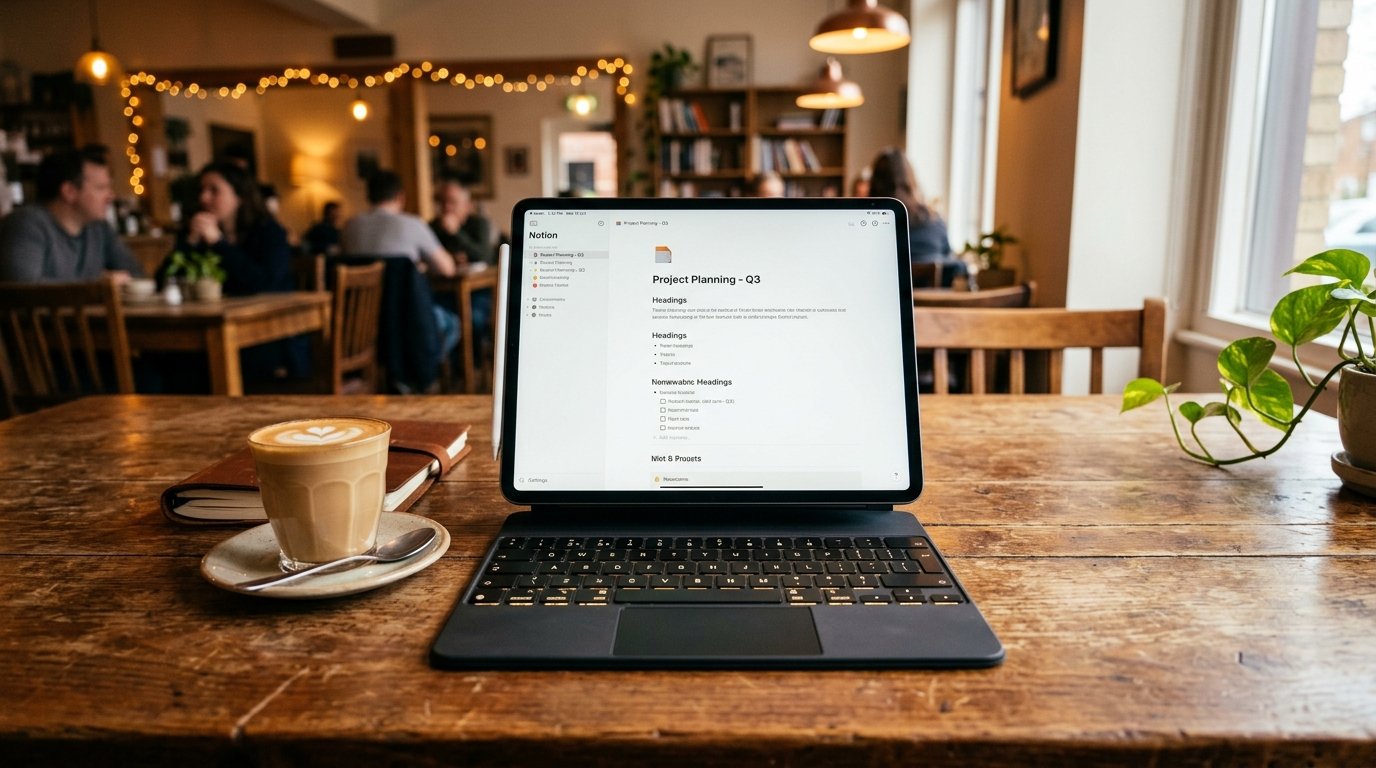
Selecting a floating cantilever magnetic keyboard case (such as the Apple Magic Keyboard or Logitech Combo Touch) forms the core foundation of an ipad remote work setup. Magnetic attachment allows instant switching between typing workstation mode and handheld tablet sketching. The cantilever hinge elevates the iPad screen closer to eye level, reducing cervical neck flexion compared to lay-flat tablet cases.
A integrated glass trackpad enables full iPadOS pointer navigation without reaching across the desk to tap the screen. Built-in USB-C pass-through charging port on cantilever keyboards keeps the primary iPad port free for external accessories in your ipad remote work setup.
2. Full External Display Scaling with Stage Manager in an iPad Remote Work Setup
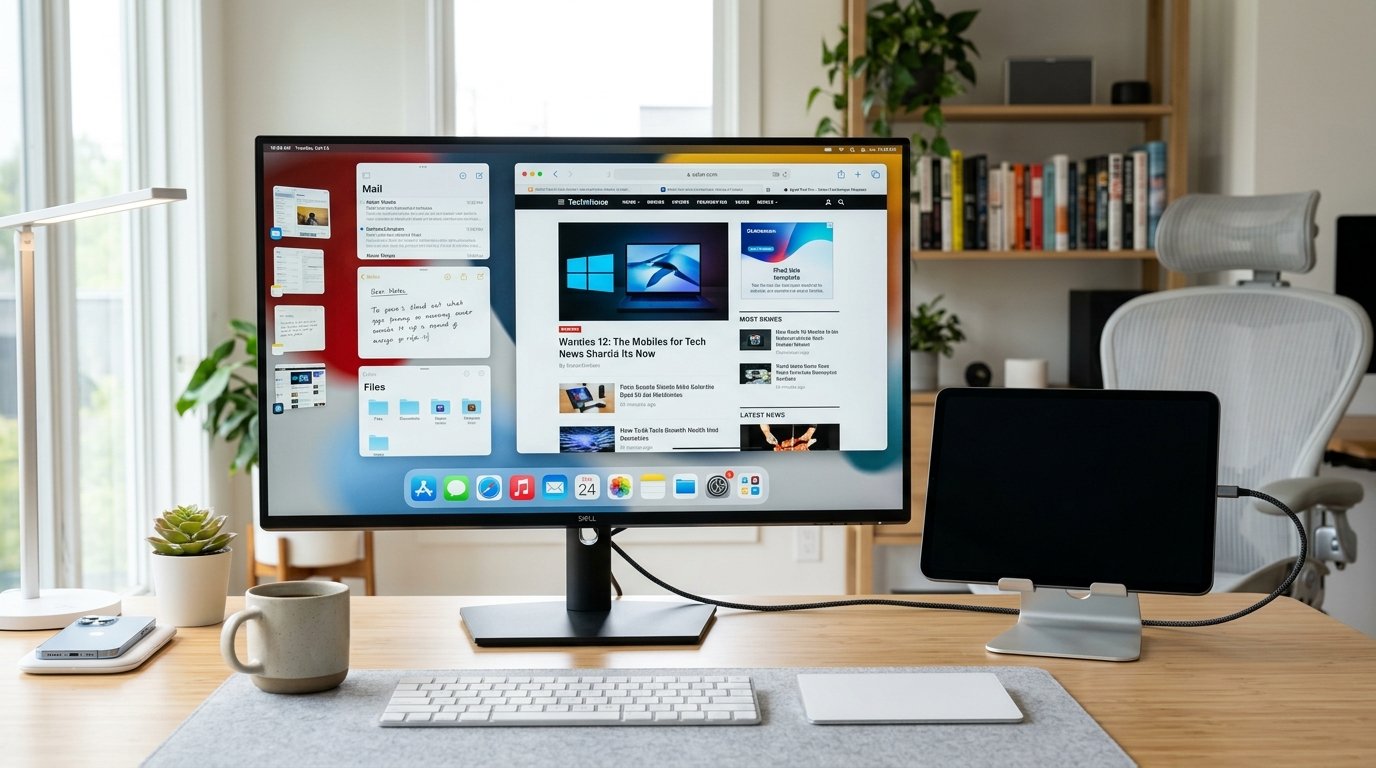
With iPadOS Stage Manager, an M-series ipad remote work setup outputs full extended desktop resolution to external 4K monitors rather than basic screen mirroring. Stage Manager enables running up to eight active application windows simultaneously across the iPad and external screen, creating a genuine multi-window workstation.
Connecting a Bluetooth mouse and mechanical keyboard allows managing spreadsheets, Slack communication, and browser research in separate scalable windows. This extended display mode converts a ultra-portable tablet into a primary desktop driver in your ipad remote work setup.
3. Multi-Port USB-C Hubs and Card Readers in an iPad Remote Work Setup
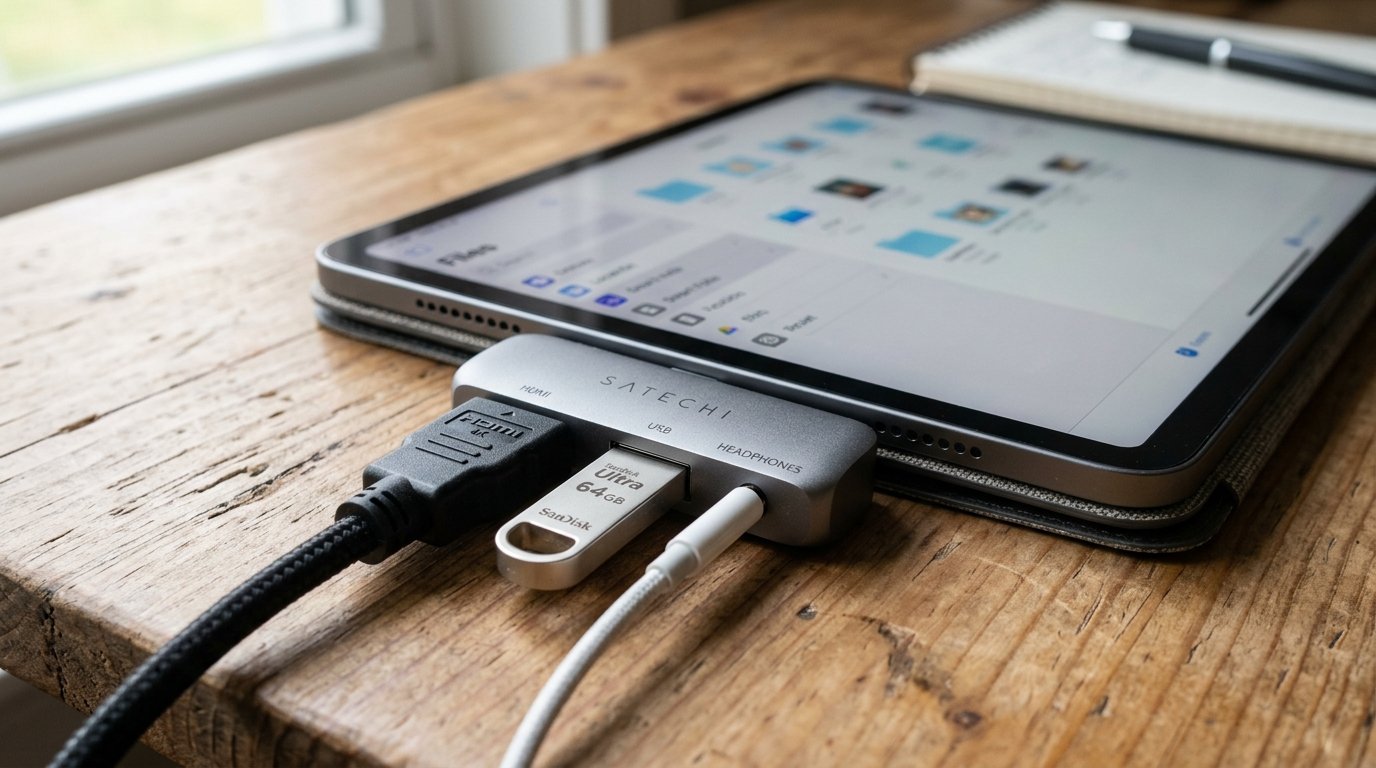
To overcome single-port constraints, an advanced ipad remote work setup incorporates a compact pass-through USB-C hub. High-quality aluminum hubs provide 4K 60Hz HDMI video output, SD/MicroSD card readers, USB-A ports for legacy drives, and 100W Power Delivery pass-through charging.
Snap-on flush hubs or short braided cable docks attach securely to the iPad chassis without dangling. Adding multi-port connectivity enables transferring camera footage, connecting wired audio interfaces, and charging hardware simultaneously within your ipad remote work setup.
“Pairing Apple Silicon iPads with external 4K monitors via Stage Manager delivers a lightweight workstation that rivals traditional laptop setups.” – Mobile Tech Review 2026
4. Universal Control and Multi-Device Sync in an iPad Remote Work Setup
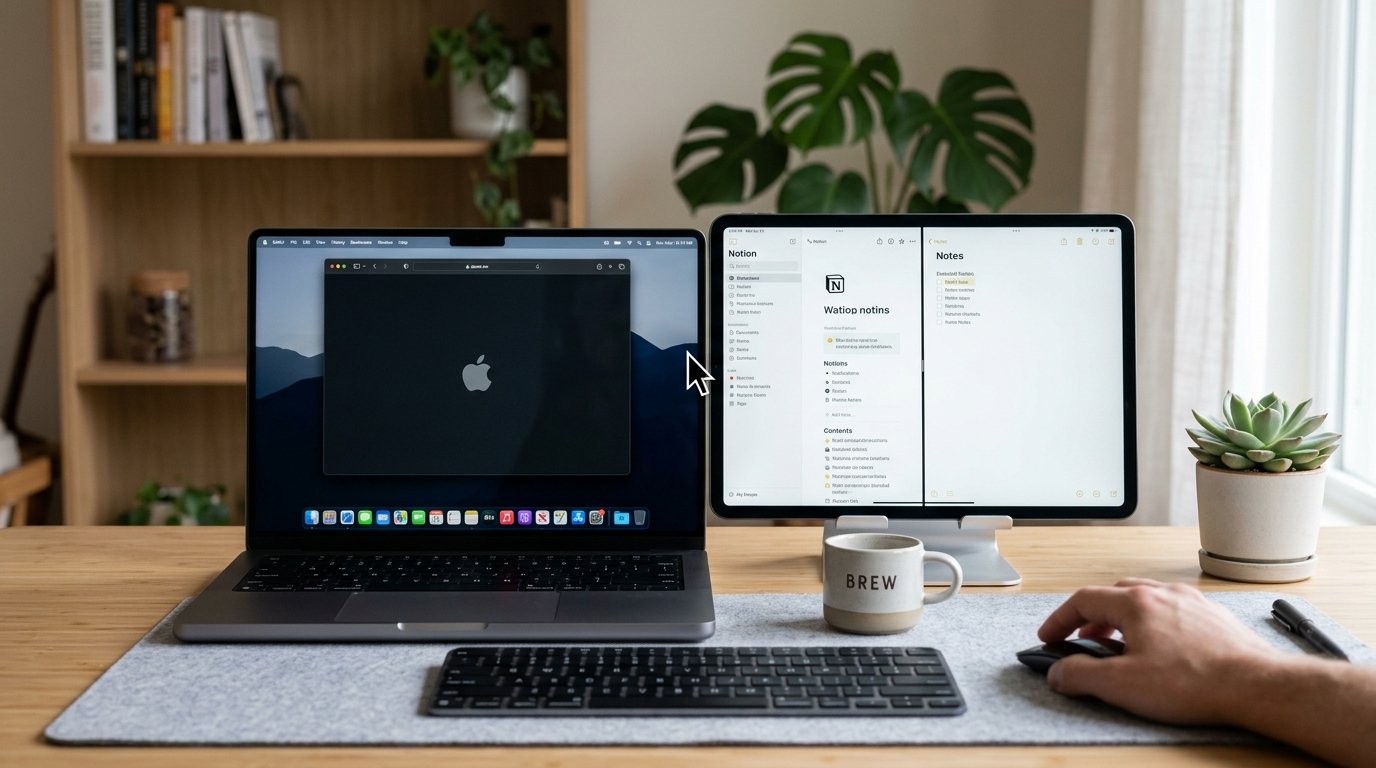
For remote workers utilizing an iPad alongside a Mac desktop, Apple Universal Control links both devices into a unified ipad remote work setup. Universal Control requires zero complex pairing; placing the iPad next to your Mac allows your primary mouse pointer and keyboard to seamlessly cross screen borders.
Dragging files from Mac Finder directly into iPad apps (or copying text on Mac and pasting on iPad) creates a fluid multi-device workflow. Utilizing the iPad as a dedicated communications or document reference screen offloads primary processing tasks from your main computer.
5. Desktop Ergonomic Tablet Risers and Pencil Holders in an iPad Remote Work Setup
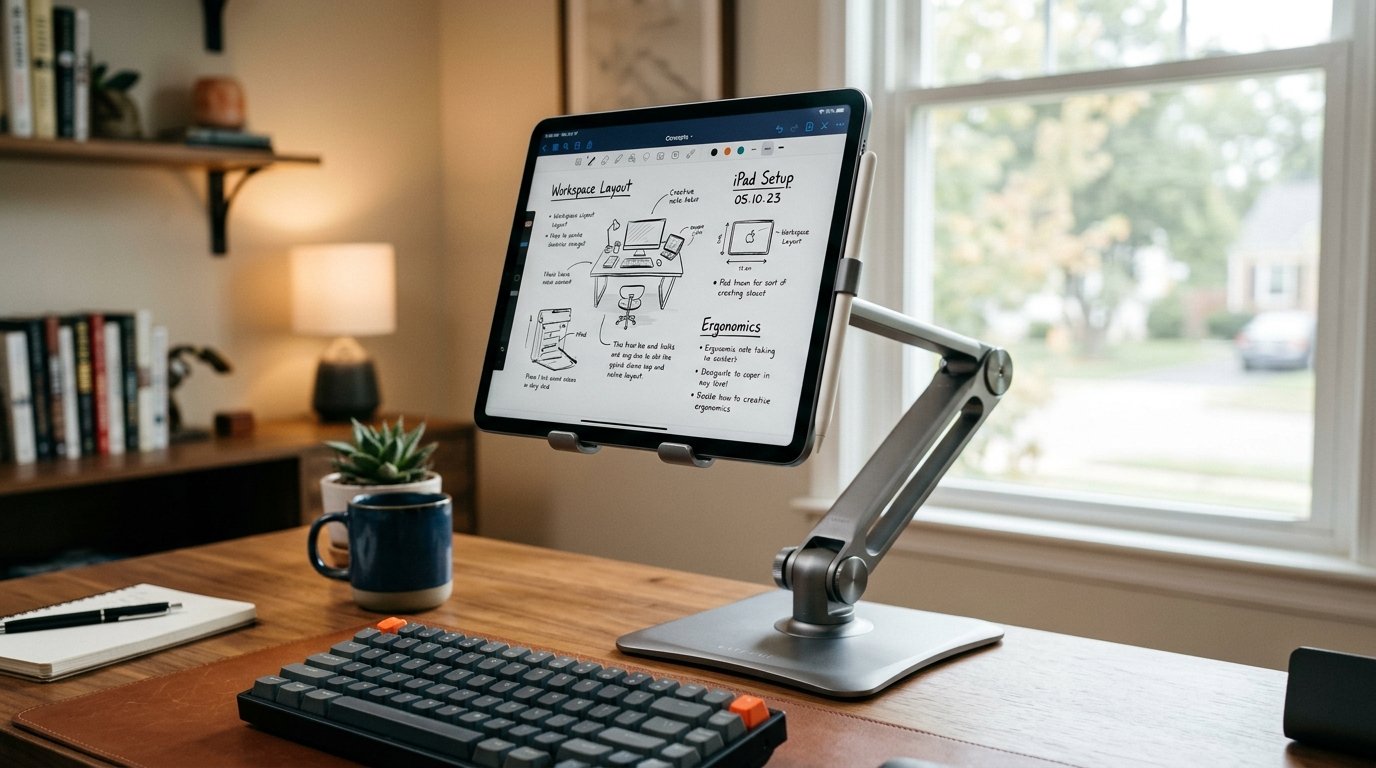
Working long hours on a low tablet screen induces upper back fatigue. Integrating an adjustable desktop aluminum tablet riser in your ipad remote work setup lifts the screen to standard ergonomic eye height. Paired with a separate Bluetooth keyboard, a raised tablet stand prevents slouching during long writing sessions.
Stands featuring 360-degree swivel bases allow effortless rotation for presenting concepts to colleagues or switching between portrait and landscape modes. Magnetic Apple Pencil docking keeps creative stylus tools charged and ready on your ipad remote work setup.
“Elevating tablet screens on desktop risers eliminates the downward neck tilt common in mobile working environments.” – Ergonomic Workspace Institute
6. Streamlining Cloud Storage and Files App Workflows in an iPad Remote Work Setup
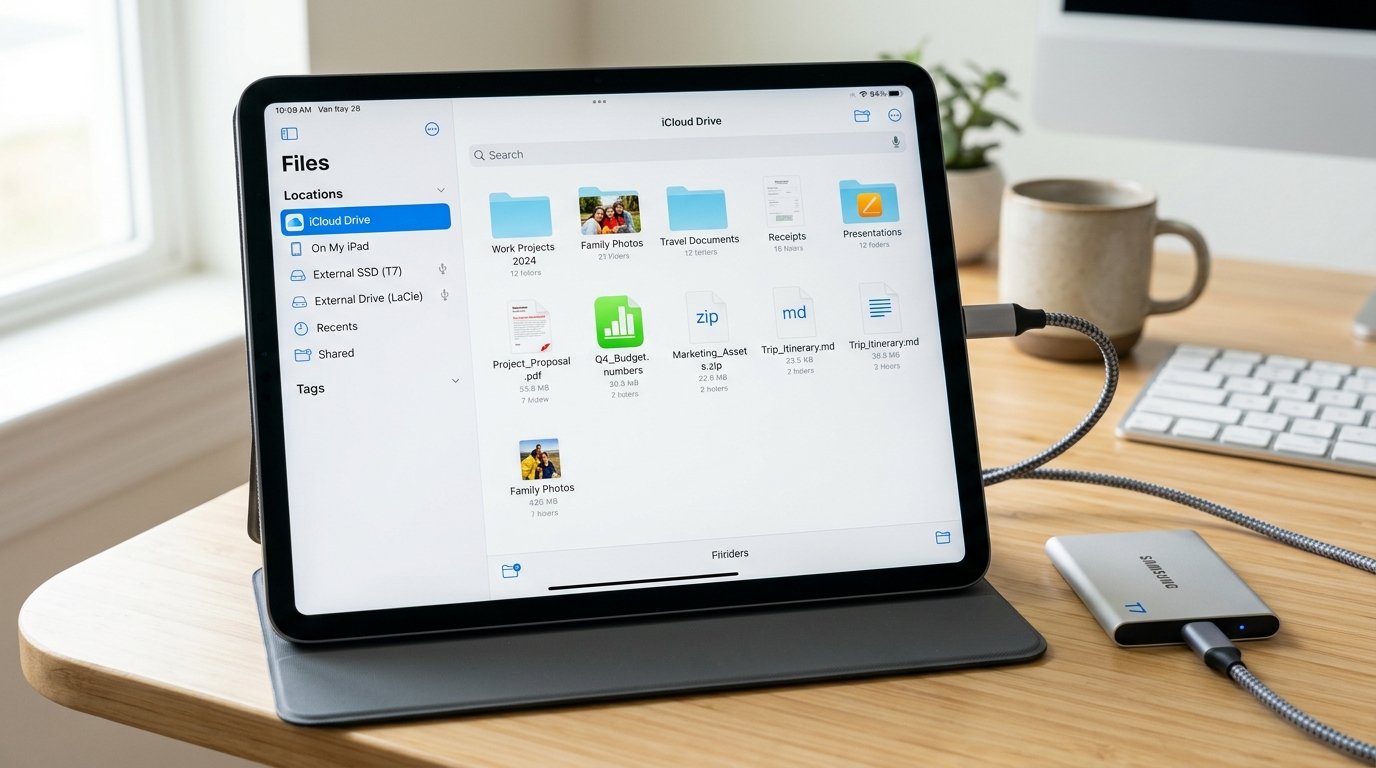
Efficient file organization is essential for maintaining seamless workflows in an ipad remote work setup. Utilizing iPadOS Files app integration with cloud providers (iCloud Drive, Google Drive, Dropbox) ensures all work assets remain synchronized across mobile and desktop environments.
Formatting external SSDs (such as Samsung T7) to APFS or ExFAT enables instant high-speed file transfers directly through the USB-C port. Local folder organization combined with automated cloud backup guarantees data security across your ipad remote work setup.
7. High-Capacity Power Banks and Mobile Connectivity in an iPad Remote Work Setup

True remote mobility requires independent power and internet access. Equipping your ipad remote work setup with a high-capacity 25,000mAh portable power bank capable of 65W+ USB-C Power Delivery guarantees all-day operational battery life away from wall outlets.
Selecting Cellular Wi-Fi + 5G iPad models (or pairing with a mobile phone hotspot) eliminates reliance on insecure public Wi-Fi networks. High-speed cellular connectivity allows hosting video calls and uploading large files reliably from any remote location.
Q: Budget vs. Premium Cost Guide
| Component Category | Budget Friendly Option | Premium Professional Option |
|---|---|---|
| Keyboard Case | Logitech Combo Touch ($149) | Apple Magic Keyboard ($299) |
| Desktop Stand | Aluminum Folding Riser ($22) | Kensington StudioDock ($240) |
| USB-C Hub | Anker 5-in-1 USB-C Hub ($35) | Satechi Aluminum Stand & Hub ($99) |
| Power Bank | Anker 20,000mAh 30W Bank ($45) | Anker Prime 27,650mAh 250W ($179) |
Q: Myth vs. Fact
Myth 1: iPadOS cannot support real multi-window desktop multitasking.
Fact 1: Stage Manager on M-series iPads allows running up to eight flexible overlapping windows across iPad and external displays.
Myth 2: Connecting an external mouse to an iPad feels laggy and imprecise.
Fact 2: iPadOS features dedicated circular pointer scaling that snaps smoothly to buttons, UI elements, and text lines.
Myth 3: iPad screens are too small for serious daily remote work.
Fact 3: Connecting an iPad to an external 27-inch 4K monitor provides expansive extended desktop real estate.
Myth 4: You cannot format or use external hard drives on iPadOS.
Fact 4: The Files app supports reading and writing to APFS, FAT32, and ExFAT formatted external SSD drives directly.
Myth 5: Battery life drains rapidly when using an iPad with an external display.
Fact 5: USB-C monitors and hubs with Power Delivery pass-through supply continuous charging power while outputting video.
Q: Frequently Asked Questions (FAQs)
Q: Which iPad models support extended monitor support via Stage Manager?
Extended external display support requires an iPad equipped with an Apple Silicon processor (M1, M2, M3, M4) running iPadOS 16.2 or later.
Q: Can I use a third-party wireless mouse with an iPad remote work setup?
Yes, any standard Bluetooth or 2.4GHz wireless mouse with a USB receiver works seamlessly with iPadOS pointer navigation.
Q: What is the best way to back up local files on an iPad?
Enabling automatic iCloud Drive syncing combined with periodic manual backup transfers to an external USB-C SSD ensures full data redundancy.
Q: Can I run full desktop browser extensions on an iPad?
Safari on iPadOS renders desktop-class websites natively and supports full Safari web extensions downloaded directly from the App Store.
Building a high-efficiency ipad remote work setup unlocks unmatched mobility for digital nomads and modern professionals. By combining magnetic cantilever keyboards with USB-C hubs, desktop risers, and Stage Manager external display scaling, your iPad becomes a powerful, compact productivity driver anywhere work takes you.